Multi-account system: Share content
|
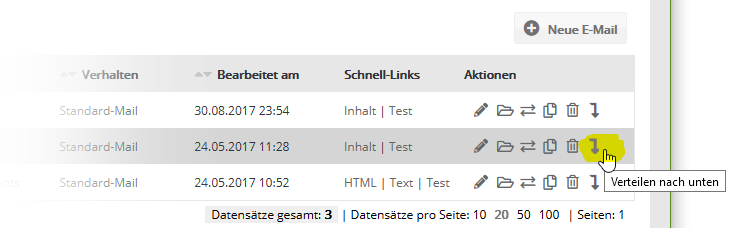
In your multi-account system, you can create elements such as emails, templates, target groups or campaigns centrally in the admin account and then share them to your customers' subaccounts. You can also share elements from a subaccount up to the admin account or to other subaccounts. In the overviews of emails, templates, campaigns and wherever elements can be shared, the 'Actions' column contains an arrow icon for sharing.
After clicking the share icon, select the accounts you want to share the element to.
Click 'Share element' to share the element to the selected accounts. Sharing it again updates the element in the target accounts. Make sure that the users in the target account have not edited the element in the meantime, because sharing it again overwrites their changes (for a remedy, see the next section). Shared elements are marked with an info icon in the subaccount. When you hover over it, it shows information about the last sharing operation.
Special feature in admin accounts: Centrally locking and (de)activating shared emails and campaignsSpecial feature #1: In admin accounts, you will find the additional button 'Change state' when sharing emails and campaigns. It lets you centrally activate, pause, reactivate, reset or finish a previously shared email or campaign in the selected subaccounts. To make selecting the accounts easier, set the 'Show subaccounts' filter to the option 'Accounts the element has already been shared to'. For better orientation, each subaccount shows its ID, company and account properties as well as the element properties 'Last shared' and 'Status'. If needed, click 'Hijack' to go directly to the element in the respective account and check it once more beforehand. Special feature #2: In admin accounts, you can lock changes to the shared emails or campaigns within the subaccounts before sharing them. To do this, go to the 'Basic settings' tab of emails and find the section 'Share mailing to subaccounts', and similarly for campaigns the section 'Share campaign to subaccounts'. There are two lock options:
You can remove both locks by sharing the element again with changed lock settings, which updates it. After sharing: Check the resultAfter sharing, check in the 'Extras -> Share: jobs' menu whether the action was successful for all selected accounts. If sharing failed in one of the accounts, an error message is shown for that account. Sharing to the other accounts is not affected. The most common cause of errors is missing substitutes, for example the substitute of a template when sharing an email. These substitutes are required so that the shared element can clearly assign all the components it needs in the target account. The same applies to the 'Change state' action (see Special feature in admin accounts). The status can only be changed successfully if the element exists (i.e. was shared before) and currently has a suitable status. For example, you cannot change the status of a finished campaign or an email that has already been sent. In this case, an error message is shown for the affected account. Successful status changes in other accounts are not affected.
|