Setups: Tell a friend
With the 'Tell a friend' module, you create forms that recipients can use to recommend your newsletter to friends, colleagues, acquaintances, etc. An example of how the process could look: The subscriber clicks 'Recommend newsletter' in the newsletter ‚ 'enters all required data in a form', message 'The email has been forwarded' and 'the recipient receives the forwarded email'.
You can later edit ('Open'), 'Move' to subfolders and 'Delete' existing Tell-a-friend setups. If you have already moved a setup to a subfolder, you can switch to the containing subfolder using the 'Open folder' button.
|

 |
| |
Creating a new Tell-a-friend setup
In the first step, 'Settings', enter a name and optionally add a description.
The next step takes you to the 'Dialog pages'. To explain: after entering their data successfully or incorrectly, a subscriber is taken to a corresponding response page, for example to receive the message 'Your recommendation was sent successfully'. If you leave these fields empty, emma standard pages are used. If you want to display your own pages instead, enter the URLs of your web pages in the fields. Alternatively, Sparkassen Finanzportal can create dialog pages based on your corporate design.
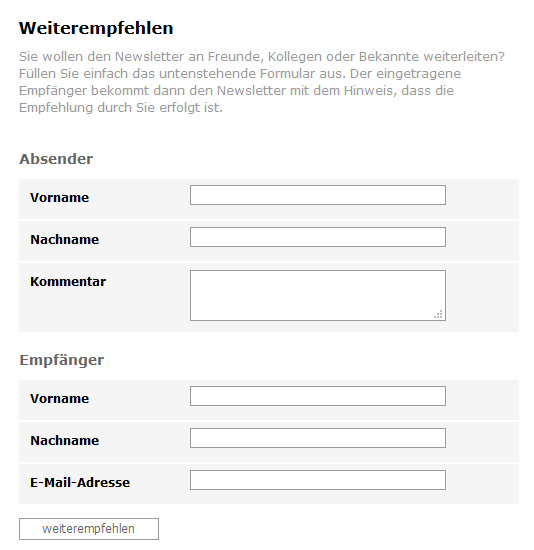
On the 'Form' tab, you select which details the user should provide about the sender and the recipient. You can also include the link to the subscription form here. After clicking 'Generate form', emma generates the required HTML code.
Next to it you will find 'Show preview'. Click it to see a preview of your form. This is what the preview of a Tell-a-friend form could look like:
|
|

|
|
The generated code is displayed on the 'HTML' tab:
|
 |
|
You can change the code if needed. The 'Input assistance' is available for this and lets you, among other things, insert personalized 'Subscriber fields' (such as salutation, name, etc.). You can also use dynamic content, personalization helpers (both found under 'Elements') and 'Dialogs'. You can use all these aids to create individualized salutations and content.
|
|
On the 'CSS' tab, experienced users can enter CSS code that can be integrated into the HTML code. The advantage of using CSS is that you can define a layout that is not changed by later changes to the form.
The last step covers the 'Mailing integration' (email texts). We recommend filling in these fields, because this tells the recipient of the forwarded mailing that it is a recommendation. The simplest option would be to enter 'This email has been recommended to you' in both fields. You can create more detailed (and individualized) versions using the input assistance.
Do not forget to 'Save' the data you entered.
To include the Tell-a-friend function in the template or mailing, please use the 'Input assistance'. In the 'Links' area, select the Tell-a-friend setup and link it. In addition, you must select the Tell-a-friend area in the 'Input assistance' under 'Dialogs'. This inserts the placeholder '[TAF-AREA /]'. Please insert the placeholder in the HTML after <body>, and remember to also include '[TAF-AREA /]' in the text version at the very beginning, before the actual text.
|