


Subscribers: Profile enhancement
With 'Profile enhancement' you can change the data of a specific group of subscribers in just a few clicks.
This lets you re-sort your data, merge information and make corrections. This can be triggered by new insights into your subscribers that you have gained in the course of your email marketing.
Typical use cases are:
- Changing list membership: Remove subscribers from a subscriber list and/or add them to another list. This lets you combine several lists or split an overall list, e.g. into a DE list and an EN list based on a subscriber field "Language".
- Enhancing a subscriber field: Store the current value of an interest or the current target group membership in a subscriber field.
- Enhancing interests: Enter interests for specific subscribers (target groups) that you have gained, for example, by evaluating a survey.
- Assigning a voucher series : Assign a previously created voucher series to specific subscribers.
Step 1: Subscriber selection
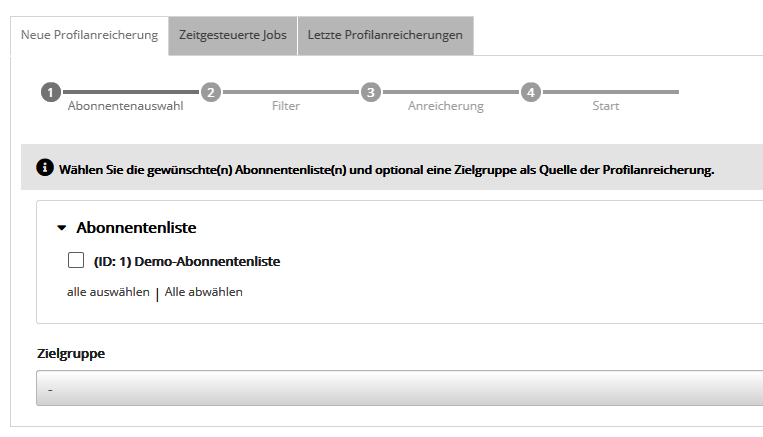
Profile enhancement consists of 4 steps that must be completed in one go. In step 1, select one or more subscriber list(s) as the source of the profile enhancement. You can also specify a target group, which you can narrow down further with filters in the next step.
Step 2: Filters
If required, you can narrow down the subscriber selection from step 1 even further by setting filters. The filters work like a target group. The following filter options are available:
- Subscriber data: Filters subscribers by the value of a subscriber field.
- Receipt of a mailing: Filters subscribers by whether they received a standard mail or dialog mail. A subscriber has received the mailing if their email server accepted it. However, the mailing may still have ended up in a spam folder, for example.
- Opening of a mailing: Filters subscribers by whether they opened a standard mail or dialog mail.
- Bounces in a mailing: Filters subscribers by bounces.
- Clicks in a mailing: Filters subscribers by their click behavior.
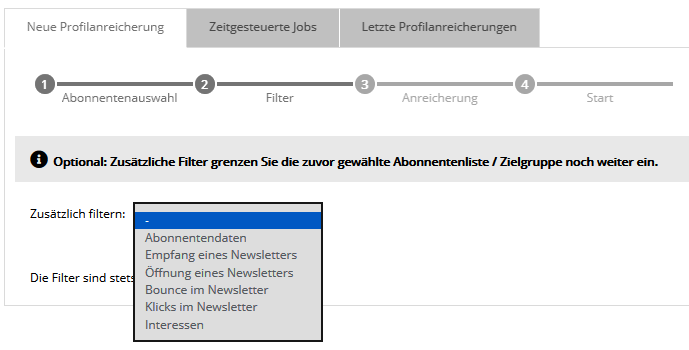
You can set several filters. They are all combined with "and", so only subscribers to whom all filters apply are enhanced. Click the trash can at the end of a row to delete a filter again.
You do not have to set a filter if you want to enhance all subscribers of the previously selected list with a specific attribute.
Step 3: Enhancement
Set the desired change to your subscriber data. You can choose between two options:
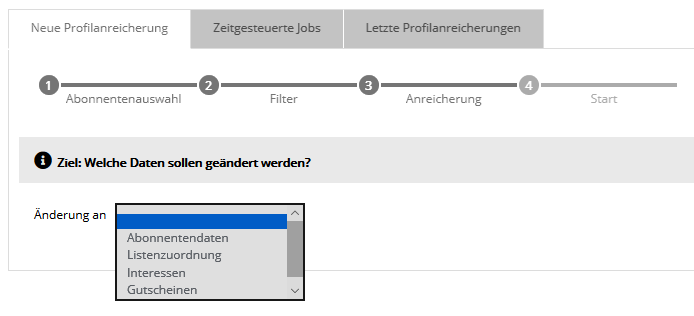
'Change subscriber data': You can change existing subscriber fields.
'Increase or decrease counter': You can increase or decrease the value of a subscriber field of the type "Integer".
In this step, too, you can specify several changes and delete them again by clicking the trash can icon.
Step 4: Start - once or time-controlled
Check the data in the summary. If you want to run the profile enhancement only once, click 'Start'.
In some cases, it can be useful to run the profile enhancement automatically at regular intervals. To do so, expand the lower section 'Settings for time-controlled profile enhancements'. Give the time-controlled job a name and enter at least the desired start time and the interval. If nothing is entered under 'End', the job runs indefinitely at the set interval.
After clicking 'Start', you are automatically taken to the 'Enhancement jobs' tab. It lists all your current and completed profile enhancement jobs.

The progress bar shows the progress of the current profile enhancement, which runs in the background. When the job is finished, the links 'Details' and 'Delete' are available. The 'Details' link shows an overview of how many of your subscribers were enhanced.
Practical examples
Example 1: Removing subscribers contained in subscriber list A and list B from list B:
- In practice, recipients with the same email address may be contained in several subscriber lists but, e.g. because of multiple imports, be stored under different subscriber IDs, so that for emma they are not the same subscriber. Run a 'Duplicate matching' across both subscriber lists with the matching field 'Email' followed by 'Merge'. This merges the duplicates found (subscribers with the same email address) under a single subscriber ID. This is the prerequisite for a target group "is contained in list A and list B" to work, because it evaluates only the subscriber ID. Then start the profile enhancement with this target group and remove the subscribers found from list B.
Profile enhancement via campaign: permanent and automatic
The elegant alternative to a one-time or periodic profile enhancement in the 'Subscribers' menu is a permanently running 'Campaign' that uses an 'Enhancement element' to react automatically and immediately to new subscribers who enter the system via import or new opt-in.