Setups: Import setupsAn import setup lets you save the settings of a subscriber import and apply them again to future imports with a single click. Import setups are useful if you regularly import your subscribers into the same subscriber list and the structure of your import file stays the same (number and order of the columns). You can create as many import setups as you like, so that a setup is available for every recurring import task. This saves you time and also helps inexperienced colleagues run the import smoothly.
The 'Actions' column contains the icons
Creating a new import setupTo create a new import setup, click 'New import setup'.
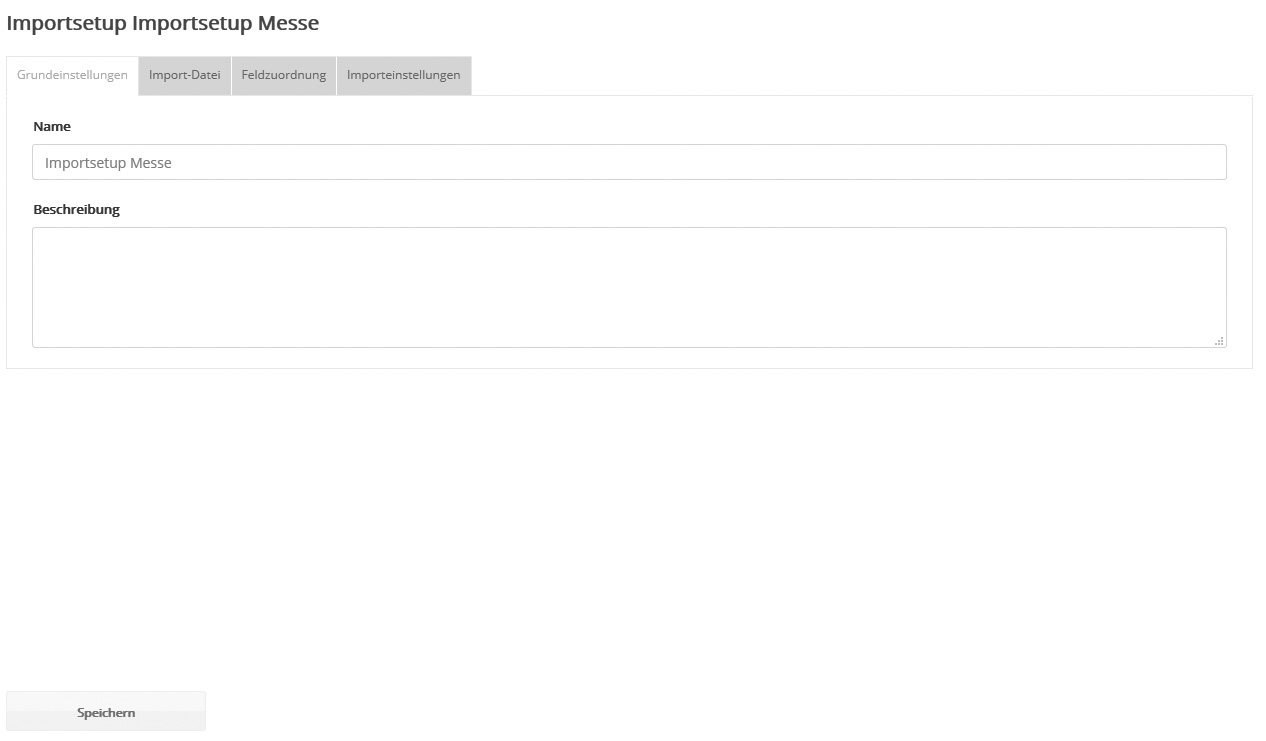
In the pop-up window that appears, first enter a 'Name' for the setup. It does not have to be final at this point. Besides creating your import setup manually, you can also have it created automatically during a manual import. To do so, simply select the option 'Save current settings as import setup' in the last import step. Basic settings
If you like, you can change the 'Name' of your import setup once more. You will later find the import setup under this name in the corresponding selection fields. Optionally, you can also enter a 'Description' for your own reference. Import file
On the 'Import file' tab, you specify details about the structure of your CSV file. Set the 'Field separator' and 'Text separator' so that they match those of your CSV file. In most cases, the default settings (semicolon as field separator, quotation marks as text separator) already fit. The 'First line contains column headings' option specifies whether the first line of your CSV file contains the column headings (e.g. first name, last name, email) or starts directly with subscriber data. Field mapping
On the 'Field mapping' tab, you tell mailingwork which column of your CSV file (e.g. first name, last name) should be imported into which mailingwork subscriber field. To do this, link the subscriber fields on the left to the matching column of your CSV file by selecting the correct column number. Please note that the first column of your CSV file corresponds to 'Column 1' in the selection field, not 'Column 0'. Note: If the structure of your imported CSV files changes, you must adjust the column mapping. If the column mapping does not exactly match the structure of your CSV file, the fields of the imported subscribers are filled with the wrong values, similar to the automated FTP subscriber import. Import settings
You define the final settings of your import setup under 'Import settings'. The options have the same meaning as those of the manual 'Import'. If you do not specify an option, it is not preset for an import based on your import setup. However, you can still specify it during the import. |


 for editing and managing the import setup, from left to right: