


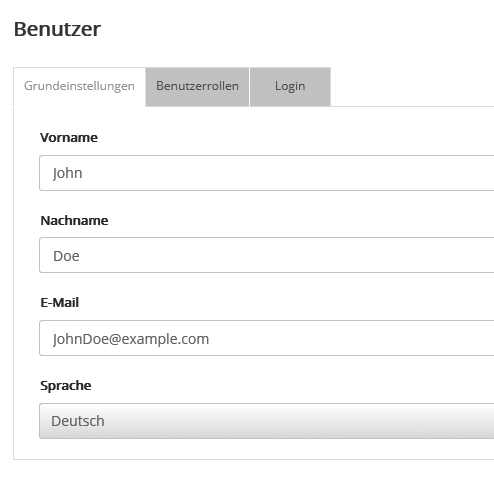
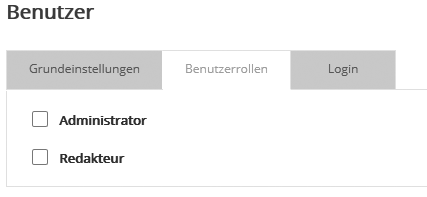
Administration: UserIn this menu, you manage the users and global users of your account. You assign the required permissions to every user except the account administrator using freely definable user roles. The account administrator and users with the role permission to create, edit and/or delete users have access to the user management. 'New user' buttonOn the 'Basic settings' tab, enter the user's email address and select the language of the user interface.
|
 |
|
|
 |
|
'Password policies' buttonHere you set global password policies for all users. If you want to set a shorter or longer password change interval for certain users, you can do so in their user role. The setting of the user role always takes precedence.
|

Global users
If your account has the required account permission, you can manage users who access several accounts across the system in the 'Global Users' section. The advantage: global users have just one login that they use to log in to several assigned accounts, whereas other users can only be used locally in the account in which they were created.
Global users are created in the admin account and receive access there to all selected subaccounts. For each account, you can assign one or, if required, several global user roles to control permissions centrally.
'Create global user' button
As usual, enter the user's email address and other relevant data, such as first name, last name and the language of the user interface, in the Basic settings. On the 'Login' tab, assign a unique user name and a password to create the global user successfully.
In the next step, use the third tab 'Accounts and roles' to select which subaccounts the global user should have access to. To do so, click the 'Add accounts' button and move all the accounts you want to the right side. After saving, all selected accounts are listed on the tab. Then specify which global user roles the user should have in each account. You can do this either individually for each account in the 'User roles' column or for several accounts at once using the multi-action 'Add user roles'.
Once set up, you can log in to the global user with the assigned login data and, after logging in, select which of the assigned subaccounts you want to log in to. To switch accounts while working, simply click the 'Switch account' menu item at the top right of the navigation menu and then select the target account you want.
Please note that the API cannot be used for global users. In this case, the error 'Login failed' is returned.