


Extras: Vouchers
Vouchers let you give your customers an additional incentive, for example for taking part in surveys or registering for certain topics. Using them can also help make your online shop better known. To let you create and manage the vouchers you need as conveniently as possible, emma offers a wide range of options for administering them.
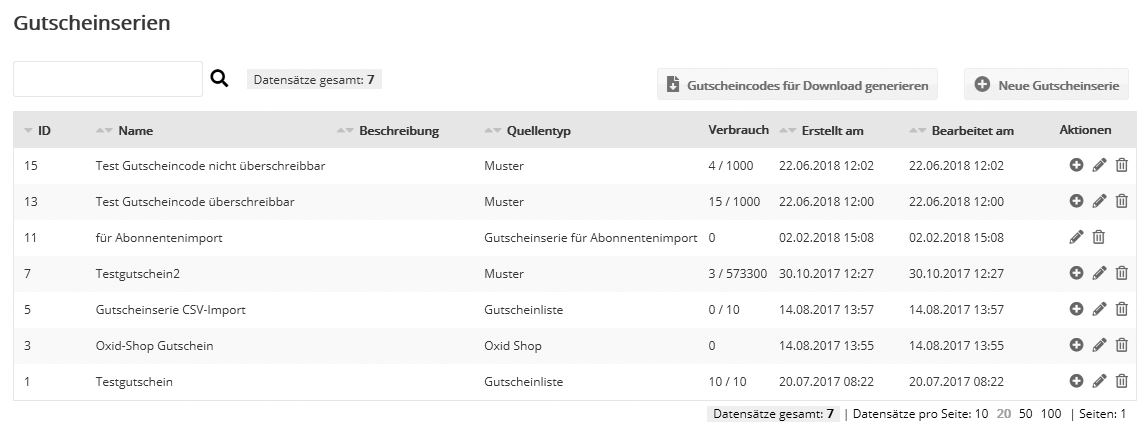
You will find this area of the program under 'Extras' -> 'Vouchers'. Click the buttons under 'Actions' to navigate within the voucher series area:
 |
'New voucher source' | lets you change the specified voucher source while keeping all other settings |
 |
'Edit' | opens the voucher series with all specified data for editing |
 |
'Delete' | deletes the voucher source permanently. Please note: The deleted element cannot be restored. |
Generating voucher codes without a voucher series
In addition to the voucher series you have created, you can also generate voucher codes solely for download as a CSV file, without having to create a voucher series in emma. To do this, click the 'Generate voucher codes for download' button and define the parameters you want for the voucher codes.
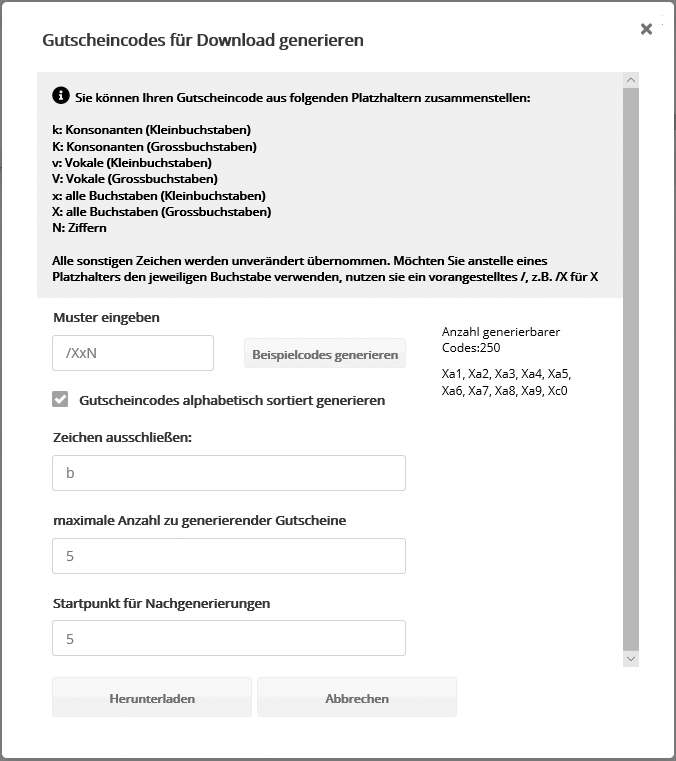
- Insert pattern: Define the structure and composition of your voucher codes using the placeholders shown in the gray area at the top. For each placeholder specified, exactly one corresponding character is inserted during generation.
- Generate voucher codes in alphabetical order: This option is usually preselected. For security reasons, you may want the voucher codes not to be assigned consecutively but in an irregular order. This makes the pattern harder to trace and reduces the risk of third parties generating voucher codes. To do this, simply deactivate the alphabetical sorting option.
- Exclude characters: If the generated voucher codes should not contain certain characters, you can exclude them.
- Maximum number of vouchers to be generated: Define the maximum number of voucher codes the generated CSV file may contain. If the number of vouchers to be generated exceeds the number of codes that can be generated from the specified pattern without duplicates, only the maximum number of codes that can be generated is created.
- Starting point for follow-up generations: If voucher codes have already been generated with a specific pattern, you can specify a starting point for the next generation to avoid duplicates. The starting point refers to the number of voucher codes to be skipped, i.e. if you have already created 1000 codes in previous generations, please enter 1001 as the starting point.
- Generate example codes: Once you have made all the settings you want, you can check the final appearance of your voucher codes once more by clicking the 'Generate example codes' button. This shows both the maximum number of voucher codes that can be generated with this pattern and some of the generated voucher codes for a visual check.
Managing voucher series
The usable voucher codes in voucher series can get into the emma system in different ways. You define the source type of the codes when you create a voucher series. To create a new voucher series, click the 'Create' button and enter the basic settings of the voucher.
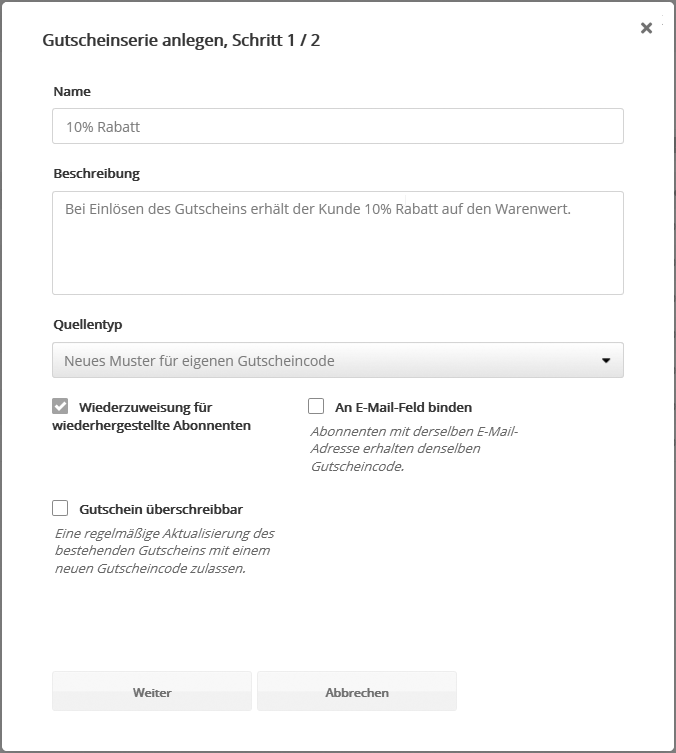
- Name: The name appears as the label of the voucher series in all relevant overviews and lists. It should be meaningful and unique to make it easier to assign the voucher series later.
- Description: As usual, the description appears in the overview and in the input help next to the element name and explains the name in more detail for better understanding.
- Type of source: The source type defines how the voucher codes get into the system.
- Reassignment for recreated subscribers: If this option is active, the voucher codes of subscribers who unsubscribed and were then restored are reused for these subscribers. If the option is inactive, the subscriber receives new voucher codes after being restored.
- Commit to e-mail: To prevent misuse of several voucher codes through multiple registrations with the same email address, the codes can be bound to the user's email address. This means that each email address receives only one voucher code per assigned voucher series, even if it is stored for several subscribers. If the option is inactive, each duplicate still receives its own voucher code. This can make sense, however, if your address data contains subscribers with the same email address who are not duplicates. The option should also not be selected if no email address is stored for the subscribers because the voucher is to be used in SMS or postcard sendings.
- Voucher overwriteable: If vouchers of this series are already assigned to subscribers, they can be updated by a new assignment. The assignment can take place, for example, as part of a campaign.
Various options are available for specifying the voucher source or source type. Once a source type has been chosen for a voucher series, it cannot be changed later. You can only choose a different voucher source of the same source type. To specify a different source type, please create a new voucher series. The available source types are explained in more detail below.
Create a pattern for your own voucher code
Like the voucher codes generated for download, you can also create vouchers with your own pattern, but with an assigned voucher series. The advantage is that you can manage the generated vouchers in emma and assign them directly to your subscribers there. To pass this assignment on to external systems as well, a subscriber export is recommended.
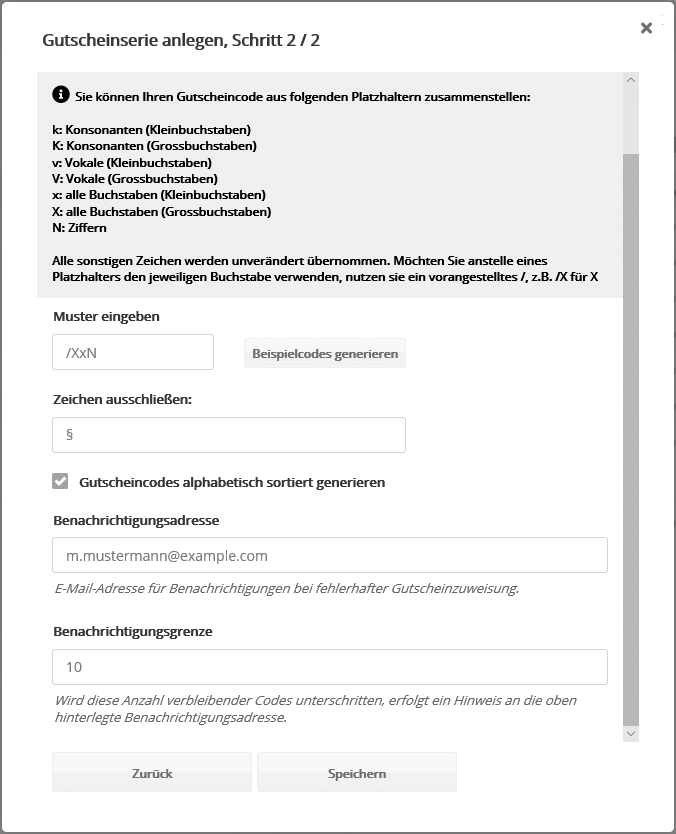
- Insert pattern: Define the structure and composition of your voucher codes using the placeholders shown in the gray area at the top. For each placeholder specified, exactly one corresponding character is inserted during generation.
- Exclude characters: If the generated voucher codes should not contain certain characters, you can exclude them.
- Generate voucher codes in alphabetical order: This option is usually preselected. For security reasons, you may want the voucher codes not to be assigned consecutively but in an irregular order. This makes the pattern harder to trace and reduces the risk of third parties generating voucher codes. To do this, simply deactivate the alphabetical sorting option.
- Maximum number of vouchers to be generated: Define the maximum number of voucher codes the generated CSV file may contain. If the number of vouchers to be generated exceeds the number of codes that can be generated from the specified pattern without duplicates, only the maximum number of codes that can be generated is created.
- Starting point for follow-up generations: If voucher codes have already been generated with a specific pattern, you can specify a starting point for the next generation to avoid duplicates. The starting point refers to the number of voucher codes to be skipped, i.e. if you have already created 1000 codes in previous generations, please enter 1001 as the starting point.
- Generate example codes: Once you have made all the settings you want, you can check the final appearance of your voucher codes once more by clicking the 'Generate example codes' button. This shows both the maximum number of voucher codes that can be generated with this pattern and some of the generated voucher codes for a visual check.
After creating the voucher series, you can check the specified parameters once more. You will find a detailed overview of the data on the "Advanced settings" tab.
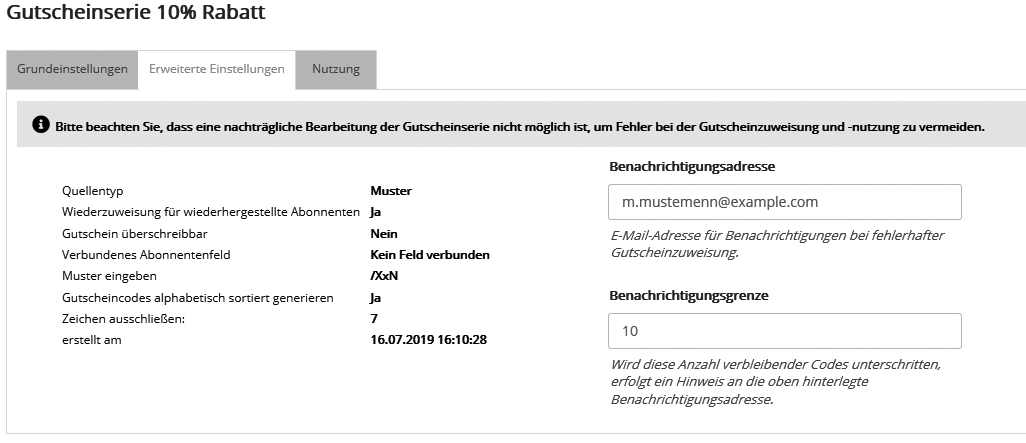
- Type of source: The source type defines how the voucher codes get into the system.
- Reassignment for recreated subscribers: If this option is active, the voucher codes of subscribers who unsubscribed and were then restored are reused for these subscribers. If the option is inactive, the subscriber receives new voucher codes after being restored.
- Linked subscriberfield: To prevent misuse of several voucher codes through multiple registrations with the same email address, the codes can be bound to the user's email address. This means that each email address receives only one voucher code per assigned voucher series, even if it is stored for several subscribers. If the option is inactive, each duplicate still receives its own voucher code. This can make sense, however, if your address data contains subscribers with the same email address who are not duplicates. The option should also not be selected if no email address is stored for the subscribers because the voucher is to be used in SMS or postcard sendings.
- Insert pattern: The structure and composition of your voucher codes are defined by the specified placeholders. For each placeholder specified, exactly one corresponding character is inserted during generation.
- Generate voucher codes in alphabetical order: The option shows whether the voucher codes are generated and assigned in alphabetical or random order. For security reasons, you may want the voucher codes not to be assigned consecutively but in an irregular order. This makes the pattern harder to trace and reduces the risk of third parties generating voucher codes.
- Exclude characters: If the generated voucher codes should not contain certain characters, you can exclude them.
- Date of creation: The date and time the voucher series was created can be read under date of creation.
- Notification address / Notification limit: If the number of remaining voucher codes falls below the specified notification limit, a corresponding notice is sent to the specified notification address. A corresponding message is also sent to this address if a voucher assignment fails.
Import from Oxid shop / Magento shop
For the two shop systems Oxid and Magento, mailingwork offers an import of vouchers directly from the shop. The system generates the exact URL for the voucher import from the Oxid/Magento shop URL you enter. The vouchers themselves are not generated in mailingwork but in Oxid/Magento. For this reason, these voucher series cannot be edited afterwards. If unexpected errors occur during the voucher import, a corresponding notice is sent to the notification address stored.
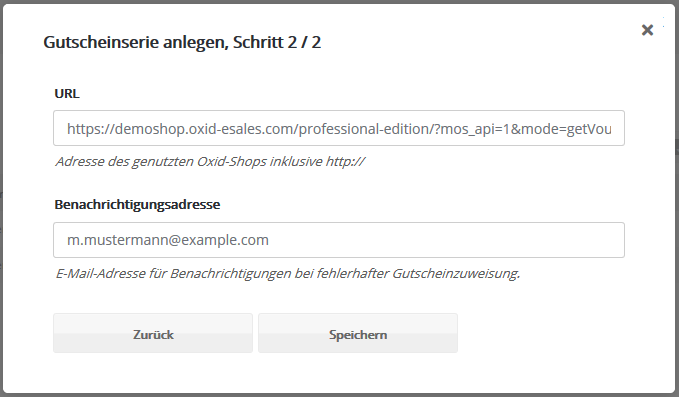
- URL: The URL for importing the vouchers is generated from the shop URL specified when creating the voucher series.
- Notification address: If a voucher assignment fails, a corresponding notice is sent to the specified notification address.
After creating the voucher series, you can check the specified parameters once more. You will find a detailed overview of the data on the "Advanced settings" tab.
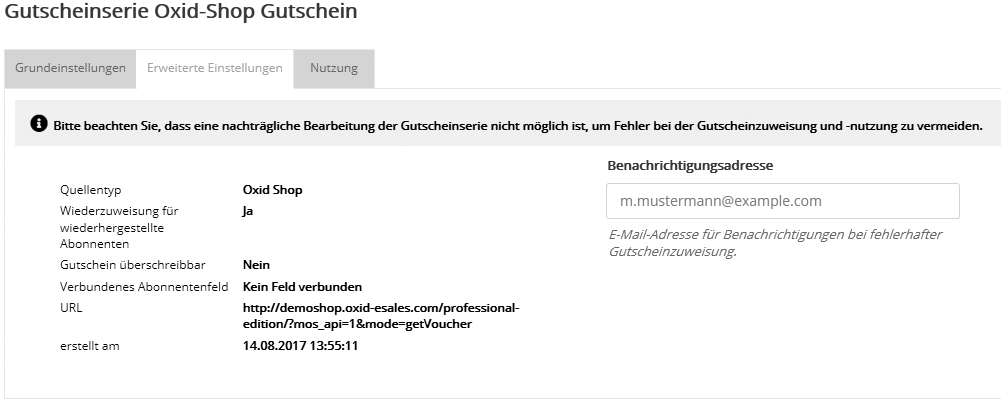
- Type of source: The source type defines how the voucher codes get into the system.
- Reassignment for recreated subscribers: If this option is active, the voucher codes of subscribers who unsubscribed and were then restored are reused for these subscribers. If the option is inactive, the subscriber receives new voucher codes after being restored.
- Linked subscriberfield: To prevent misuse of several voucher codes through multiple registrations with the same email address, the codes can be bound to the user's email address. This means that each email address receives only one voucher code per assigned voucher series, even if it is stored for several subscribers. If the option is inactive, each duplicate still receives its own voucher code. This can make sense, however, if your address data contains subscribers with the same email address who are not duplicates. The option should also not be selected if no email address is stored for the subscribers because the voucher is to be used in SMS or postcard sendings.
- URL: The URL for importing the vouchers is generated from the shop URL specified when creating the voucher series.
- Date of creation: The date and time the voucher series was created can be read under date of creation.
- Notification address: If a voucher assignment fails, a corresponding notice is sent to the specified notification address.
Import from CSV file
Importing voucher codes is useful, for example, if you want to work with vouchers from different sources. For example, vouchers can be generated in different shop systems if these can only work with voucher codes they generated themselves. These are then imported into one voucher series per shop.
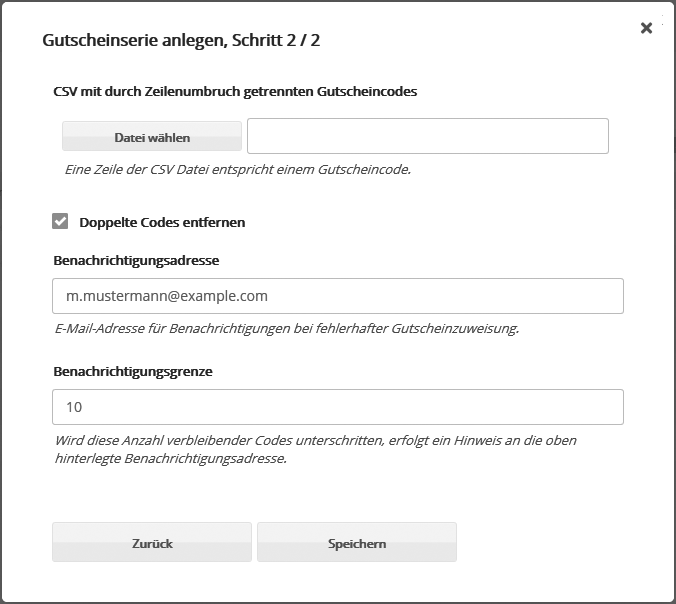
- CSV with voucher codes separated by line breaks: The CSV file must contain one voucher code per line, without a header line.
- Do not import duplicate codes: If the imported voucher codes contain duplicates, these are not imported again.
- Notification address: If a voucher assignment fails, a corresponding notice is sent to the specified notification address. Enter one or more comma-separated email addresses.
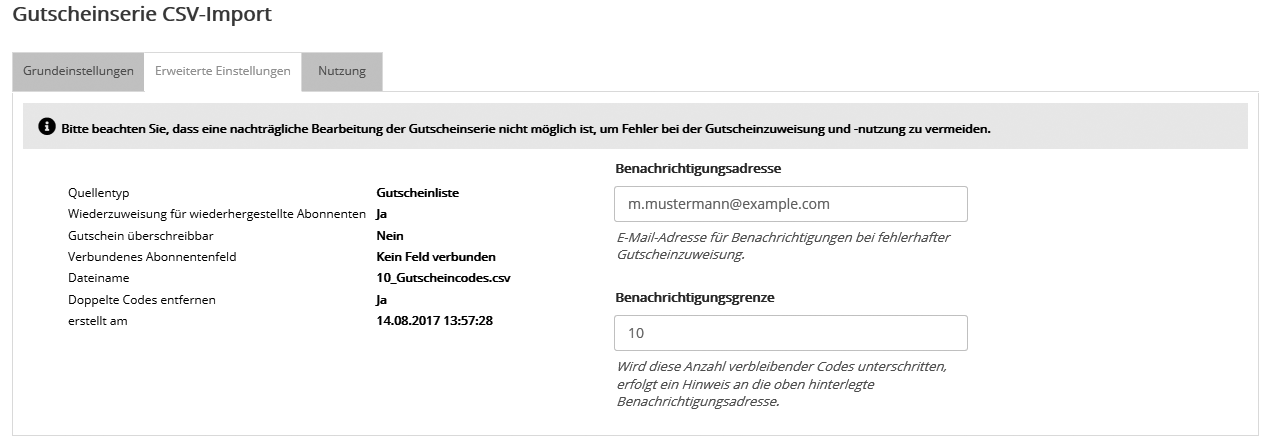
- Type of source: The source type defines how the voucher codes get into the system.
- Reassignment for recreated subscribers: If this option is active, the voucher codes of subscribers who unsubscribed and were then restored are reused for these subscribers. If the option is inactive, the subscriber receives new voucher codes after being restored.
- Linked subscriberfield: To prevent misuse of several voucher codes through multiple registrations with the same email address, the codes can be bound to the user's email address. This means that each email address receives only one voucher code per assigned voucher series, even if it is stored for several subscribers. If the option is inactive, each duplicate still receives its own voucher code. This can make sense, however, if your address data contains subscribers with the same email address who are not duplicates. The option should also not be selected if no email address is stored for the subscribers because the voucher is to be used in SMS or postcard sendings.
- File name:
- Remove duplicate codes:
- Date of creation: The date and time the voucher series was created can be read under date of creation.
- Notification address / Notification limit: If the number of remaining voucher codes falls below the specified notification limit, a corresponding notice is sent to the specified notification address. A corresponding message is also sent to this address if a voucher assignment fails.
Adding or replacing a voucher source
You can upload a new CSV file with more vouchers at any time by clicking 'New voucher source', for example if the existing vouchers will soon be used up. You can choose between:
- Replace voucher source: Uses only vouchers from the new source. Unused vouchers from previous sources expire.
- Merge voucher sources: Uses available vouchers from the previous sources and the new source together (oldest first). Only after the vouchers of the first source file have been used up completely does the system switch automatically to the next source. The 'Usage' tab shows the voucher consumption of each source involved. As long as a source still has vouchers available, it is marked "current voucher source".
Empty voucher series for subscriber import
Using a subscriber import, you can transfer existing vouchers of the imported subscribers from your CRM system into an empty voucher series.
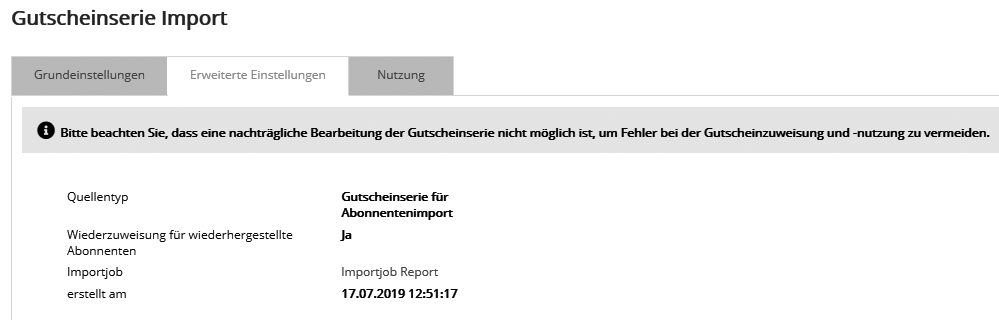
- Type of source: The source type defines how the voucher codes get into the system.
- Reassignment for recreated subscribers: If this option is active, the voucher codes of subscribers who unsubscribed and were then restored are reused for these subscribers. If the option is inactive, the subscriber receives new voucher codes after being restored.
- Import job: The voucher series becomes active with the first import carried out. You can view details of this import by clicking the 'Import job report' link.
- Date of creation: The date and time the voucher series was created can be read under date of creation.

The 'Usage' tab also shows details of the initial voucher import into this voucher series.
- Type of source: The source type defines how the voucher codes get into the system.