


Mailings: A/B test
The 'A/B test' helps you get the most out of your mailings. Does subject A or subject B get more opens? Should you send in the morning or in the afternoon? Do large product images or a voucher really generate more orders?
How it works: the A/B test sends several variants of your mailing to small, randomly selected test groups of your recipients and waits for their reactions. The winning mailing, the one with the better open or click rate, is then sent automatically to the remaining (large) group. This way you get to know your target group better with every test and keep sharpening your own intuition.
The overview lists all A/B tests, including completed ones. The 'Status' column shows the current stage of each A/B test.
Creating a new A/B test
To create a new A/B test, click 'New A/B test'.

'Basic settings' tab
Select one or more 'Subscriber lists' to send the A/B test to. Optionally, narrow down the recipients by selecting a 'Target group'.

Under 'Email', select the mailing you want to use as variant A.
--> Note: An A/B test is sent to your real subscribers. Make sure the selected mailing contains all settings required for sending, such as the sender name.
Then click 'Next'.
'A/B groups' tab
Use the slider to set the size of the test groups, i.e. the percentage of your subscribers that take part in the A/B test. To compare more than 2 variants of your mailing, click 'Add group'. You can create up to 7 test groups, for example to compare the 7 days of the week when looking for the best send time.
In the following example, the A/B test compares two test groups and selects 10% of your subscribers per group at random.
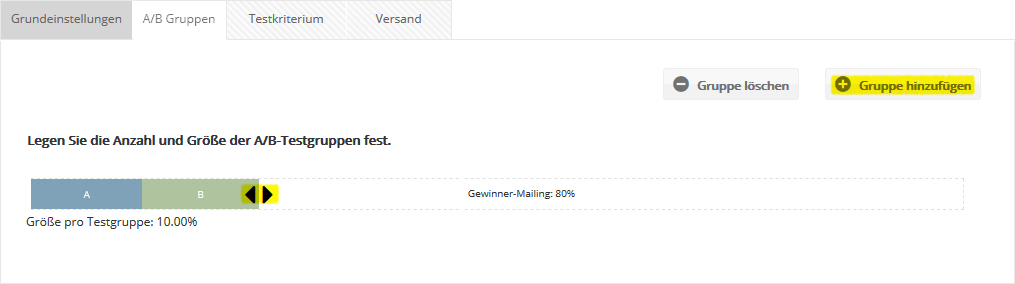
The test mailings are sent to these 20% (see the 'Delivery settings' section below). The open and click rates of both groups are measured. You can then send the winning mailing to the remaining 80% of your subscribers, either manually or automatically.
--> Note: You can also split 100% of your subscribers into test groups and use the result for future mailings. In this case, no winning mailing is sent.
'Test criterion' tab
Select the test criterion the test groups compete on:

Test different subject lines, sender names, sender addresses or send times.
The 'Email' test criterion lets you compare the effect of different mailing contents, for example different texts or images. Select several mailings to compare.
'Delivery settings' tab
Now define the delivery settings.

Choose the send time of the A/B test mailings: should they be sent immediately or at a later time?
Choose the winning criterion: should the winner be determined by the open rate, the click rate (of all deliveries) or the click-to-open rate (of all openers)? See also Overview, open/click rate.
Choose the duration of the test: after how many hours (or days) should emma end the A/B test? The longer the test runs, the more data on the open and click behavior of the test groups is collected.
Under 'After test period ends: Send the winner mailing' you have three options:
- Manually: emma shows the winner of the A/B test, but you decide yourself which mailing is "your" winner. You select the mailing to be sent to the remaining subscribers and its send time (immediately or time-controlled). To be notified in time before the A/B test ends, you can optionally enter an email address and a lead time.
- Automatically: The winning mailing is sent automatically immediately after the test ends.
- Time-controlled: The winning mailing is sent automatically at the time you choose after the test ends.
Click 'Save' to save the settings of your A/B test. Your A/B test is now ready to start.
After clicking 'Activate A/B test', an overview of your settings is shown once more. Make sure all settings are complete and correct, as the A/B test is sent to your real subscribers.
Then click 'Start A/B test'.
'Evaluation' tab
Once the A/B test has started, the 'Evaluation' tab appears. It shows the opens and clicks over the duration of the test.
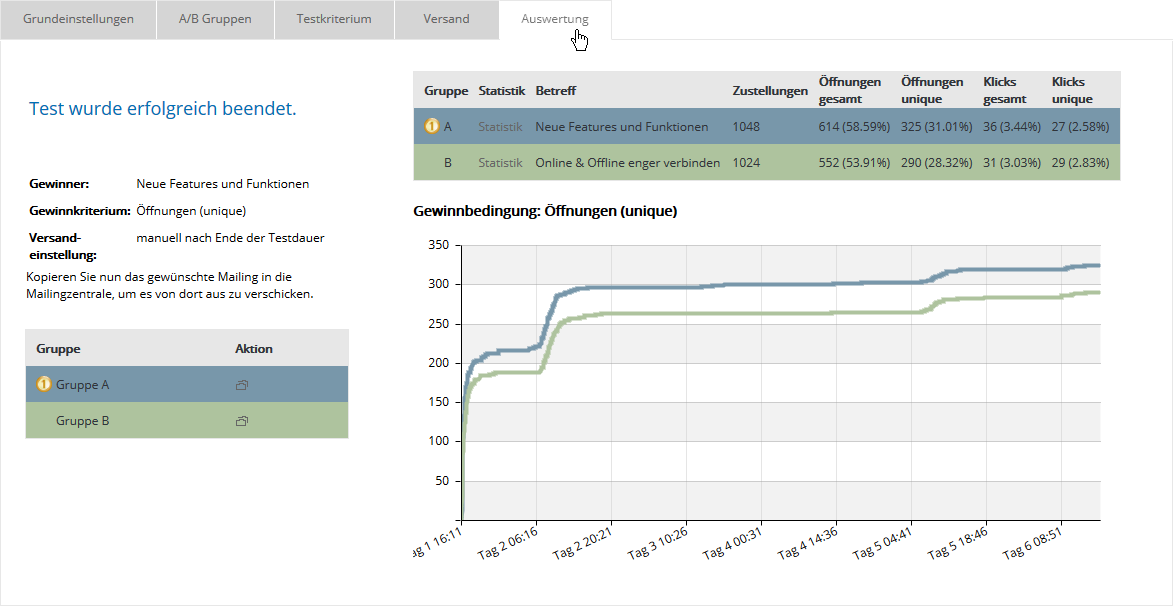
Depending on whether you chose automatic or manual sending of the winning mailing, the left side of the evaluation shows the following:
- Manually: Click the copy icon of the winning mailing you want. You will then find it in the regular email overview, where you can edit and send it as usual.
- Automatically: The winning mailing is determined and sent automatically. The send time is displayed.
Detailed statistics of the winning mailing are available as usual in the 'Statistics' menu --> 'Email'.
If errors occur while the A/B test is running, an additional 'Error' tab appears with the details.