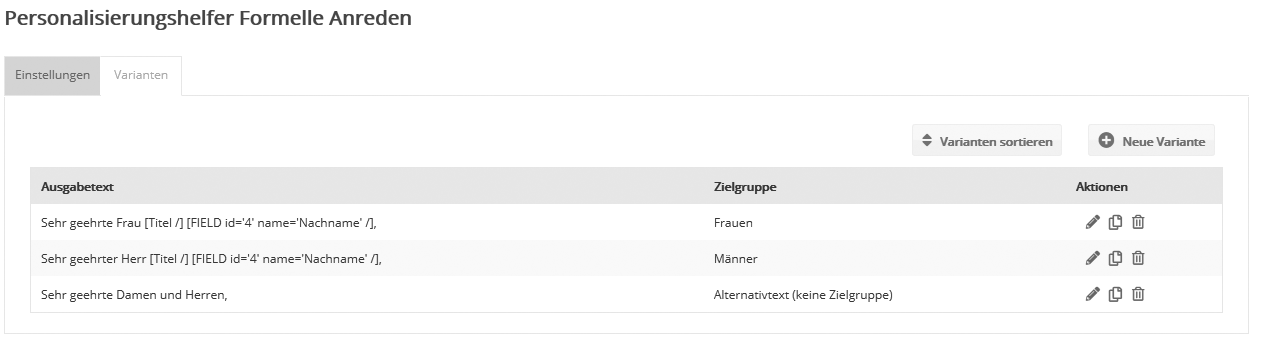
Modules: Personalization assistantThe personalization assistant outputs a text variant that depends on the target group, e.g. "Dear Mr." or "Dear Ms." as part of a personalized salutation. Only the text variant matching the respective subscriber appears in the mailing. The personalization assistant is specialized in single-line text variants. Its "big brother" without this restriction is the 'Dynamic content' function. To create a personalization assistant, click 'New Personalization assistant' at the top right. 'Settings' tabEnter the 'Name', (optionally) the 'Alias' and the 'Description' of the new personalization assistant. The alias is used later when you insert the personalization assistant into your mailing, e.g. [FormalSalutation /]. If your account belongs to a multi-account system and has the 'Share' right, the additional field 'Substitute' appears. Enter a unique name here if you want to share mailing templates or mailings that use this personalization assistant with other accounts. Then switch to the 'Variants' tab. 'Variants' tabThis is where the magic happens :-) Create different text variants and assign the desired target group to each variant. If the subscriber belongs to one of these target groups, the assigned text variant is output. The target groups of the variants are checked from top to bottom. Therefore, sort the variants from specific to general:
Of course, you can also insert placeholders for subscriber fields or other personalizations into the text of a variant. Use the familiar input assistance for this. |
Example: Formal salutationThe most common use of the personalization assistant is the formal salutation in the mailing. This means: you want to address each subscriber with "Mr." or "Ms." and their last name. As preparation, create two target groups:
The two target groups should deliberately only apply if the last name and salutation of the subscriber are known. If one of the two fields is empty, the fallback variant of the personalization assistant should apply and output a general 'Dear Sir or Madam,' instead.
In the personalization assistant, now create three text variants. To do so, click 'Create variant' at the top right:
In the text field of the first variant, enter 'Dear Ms. ' and add the subscriber field 'Last name' via 'Input assistance'. Enter the closing comma right away, then you do not have to do it in every mailing later. Assign the target group 'Women with last name' to the variant. 'Save' your changes. Now create the text variant for men and assign the target group 'Men with last name'. Now create the fallback variant for subscribers with an unknown last name or salutation, without assigning a target group. The personalization assistant only selects this variant for subscribers to whom none of the target groups of the variants above applied. |
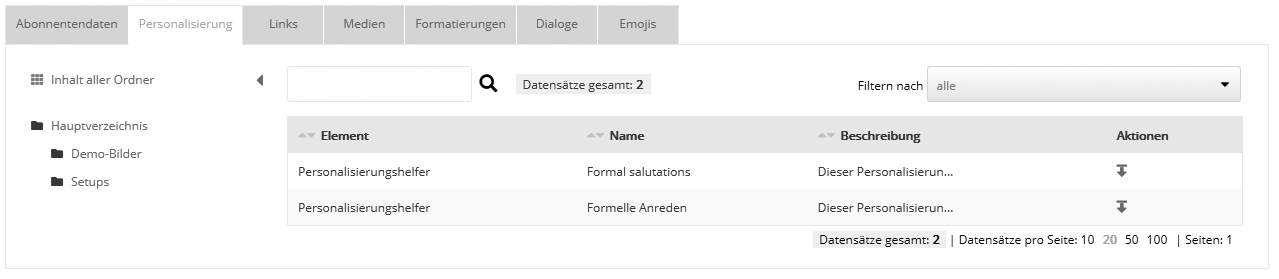
Inserting the personalization assistant into a mailingPlace the mouse cursor where you want to insert the personalization assistant in your mailing. In the input assistance, select your newly created personalization assistant on the 'Personalization' tab. One click inserts it into your mailing. At this position, the text variant matching the subscriber's target group is now displayed automatically. |
 |