Email: Tests
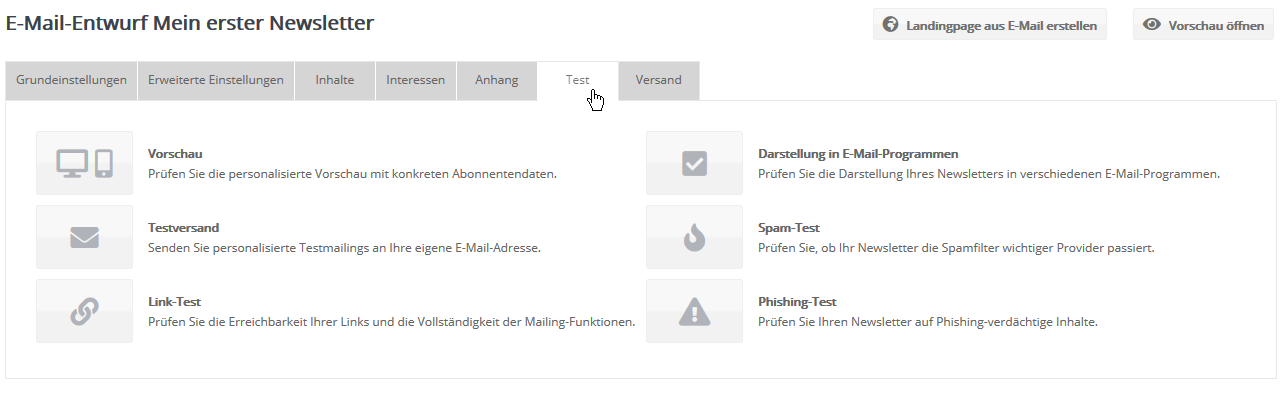
The following tests are available:
|
|||
 |
|||
PreviewTo view the personalized preview of your newsletter, click 'Preview' in the test menu.
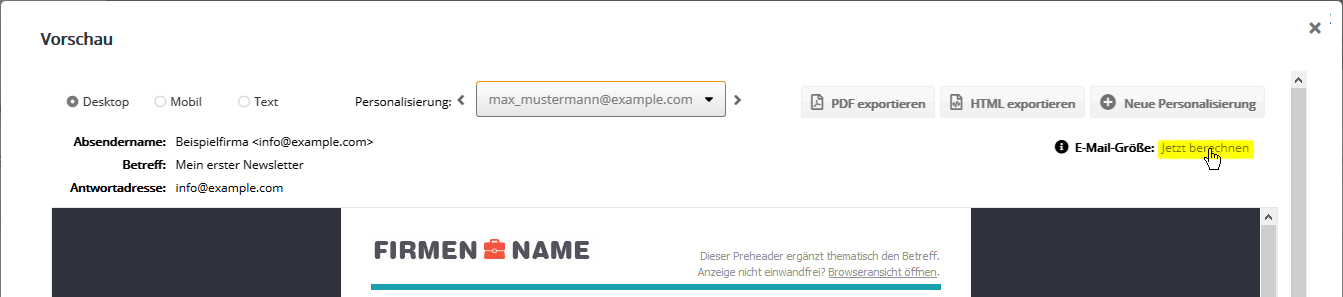
You can also export the displayed preview as a PDF or HTML file, for example for archiving purposes. To keep track of your sending costs, click 'Calculate now' at the top right to calculate the size of the email.
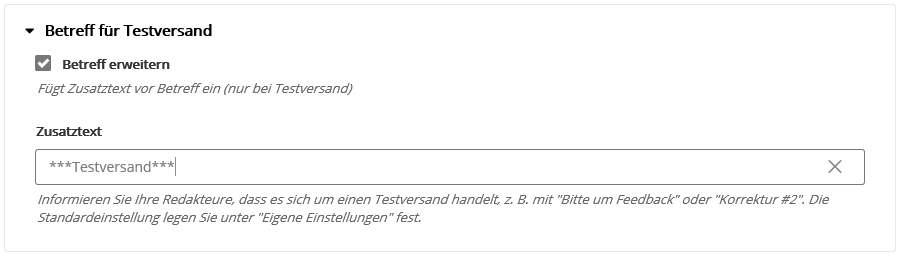
The calculation is carried out automatically for all personalizations created in the preview. Once the calculation is complete, you can switch between the personalizations, and the respective result is shown immediately. Note: Your sending costs are billed based on the average size of all emails in the billing year. Individual oversized emails do not necessarily lead to an additional charge. You will find your sending statistics, updated daily, in the Statistics -> Sendings -> Email menu. Send a testWith this function, you send your mailing for review to any email addresses you choose. They do not have to be among your subscribers. This can be, for example, your own email address or the addresses of the editors responsible for content and layout. This makes it easy to test how the chosen subject line looks in your inbox and how the content is displayed in your email client. You can choose a personalization for the test send to check the display for a specific recipient or a specific target group. To send a test, click 'Send a test' in the test menu. A pop-up window opens in which you can select a recipient for the test send and a personalization for the test. Subject for test sendsWe recommend marking a test send automatically in the subject so that your test recipients can tell it apart from the final send. This saves questions like "Is it too late for a correction? Was that a test send or already the final send?" Based on the default you have chosen ('Custom settings' menu), an additional text of your choice is inserted at the beginning of the subject, e.g. "Test - Please give feedback".
This addition to the subject is made only for test sends, i.e. neither in the preview nor in the final send. Regardless of your 'Custom settings', you can adjust, activate or deactivate the additional text for each test send. For example, you could count the correction rounds by adding a number ("Test #2") or point out the most recent change ("Salutation corrected"). Test recipients and personalization variantUnder 'Recipient', select 'individual test address' and the email addresses you want the test to be sent to. To make it easy for you to get started, we have already added your own address. Of course, you can add more test addresses and, with a corresponding selection, send your test email in different personalizations to several addresses at the same time. This requires that you have already added several subscribers to your subscriber lists. Or you use an address from the personalization. Under personalization, you now select how your test emails should be personalized. You can again choose your own personalization and use all other personalizations that you already created for your newsletter preview in the previous step. You can of course also add more personalizations here. To do this, click the 'create' button. How to proceed is described further above (under Preview). You receive one test email for each selected personalization. If you select three subscribers, for example, three emails each are delivered to the addresses selected under 'Recipient'. To trigger the test send, click 'Send'. With an individual test address, you can also select a 'random personalization' under personalization. This lets you send yourself the personalization of a random subscriber as a test email. All you need to do is select the subscriber list that contains the subscribers. You can also select a target group to narrow down the subscribers further. --> Note on the unsubscribe link in test sendsIn a test send mailing, clicking an unsubscribe link tells you whether the unsubscribe process is set up correctly. No unsubscribe takes place. Link testWith the automatic link test, emma saves you the manual work of checking whether all links of your mailing can be reached. The test result shows all links including their test result in an overview. Note: If the server of a clicked link does not respond within 2 seconds at the latest, i.e. if a link cannot be reached for more than 2 seconds, the check rates it as faulty. For very slowly responding websites, you can of course also check whether they can be reached by clicking the link. Display in email programsHere you check with one click how your newsletter is displayed in more than 60 different email clients and devices (desktop, mobile). First select a personalization: whose subscriber data (salutation, etc.) should be used to display the mailing in the test? No message is sent to this address. The content is only personalized for the display. If you want to test a personalization that does not exist yet, click 'Create' at the top right and select the subscriber you want from one of your lists. After clicking 'Start', the display test starts, together with the spam check (see next section). This triggers 23 internal test sends. It can take a few minutes until the results of all tests are available. During this time, you can close the test window at any time and open it again later to view the test result. The test continues to run in the background until it is finished. The result shows a thumbnail for each tested email client, which you can enlarge by clicking it. Here you can check exactly how your layout is displayed in the various clients and devices. To start a new test later, open the existing test and click 'Delete test'. The test can then start again. Spam checkSpam filters are a major challenge on your newsletter's way to the recipient. In the spam check, you check whether your newsletter can pass the important spam filters. First select a personalization: whose subscriber data (salutation, etc.) should be used to check the mailing in the spam check? No message is sent to this address. The mailing content is only personalized for the test. If you want to test a personalization that does not exist yet, click 'Create' at the top right and select the subscriber you want from one of your lists. After clicking 'Start', the spam check starts, together with the display test (see previous section). This triggers internal sends to various test mailboxes. It can take a few minutes until the results of all tests are available. During this time, you can close the test window at any time and open it again later to view the test result. The test continues to run in the background until it is finished. The result shows for each tested spam filter whether the test was passed or not. To start a new test later, open the existing test and click 'Delete test'. The test can then start again. Phishing testIn the phishing test, emma automatically checks all links contained in your mailing for suspected phishing. If a link suspected of phishing is found, an orange notice appears. Click the notice to see details about the affected links. Phishing means trying to deceive users about the actual target of a link, for example to lead them to a website with fraudulent content. This refers to links whose link text shows a complete web address including http:// or https://, but which actually link to a different website URL. Some services classify even correct links within a mailing (e.g. https://emma.sparkasse.de/) as suspected phishing as soon as the link text or the ALT text of a linked image starts with http:// or https://. The simple solution: Remove the http:// or https:// from the link text (not from the link URL).
|