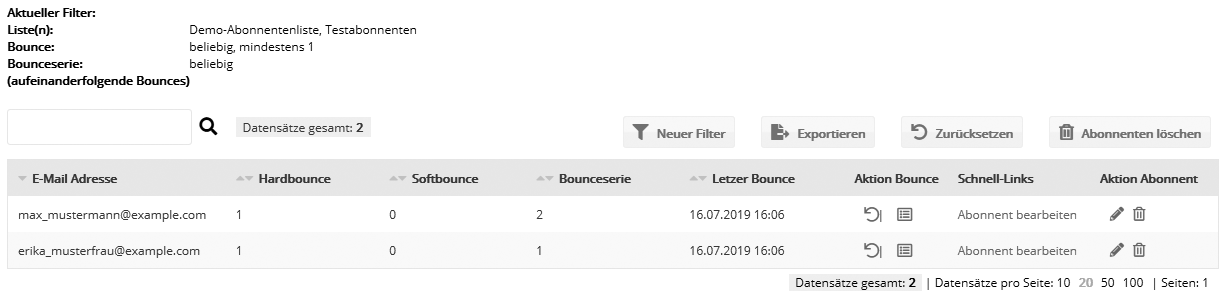
Subscribers: Bounce overview
A bounce message ("bounce" for short, as in "to bounce back") is an error message that informs the sender that an email address could not be reached. In Bounce management, emma automatically evaluates the bounces of all mailings in your account. Automatic bounce management avoids unnecessary sending volume and keeps the reputation of the sending IP, and therefore the delivery rate, high.
The 'Bounce overview' shows all bounced email addresses including the bounce reason. Bounces are counted separately per subscriber, even if several subscribers use the same email address.
Bounced addresses can be cleaned up automatically or exported as a CSV file. A 'Bounce clearing' (see 'Overview' tab) deletes all subscribers whose email address meets the bounce criteria you have set.
Note: Bounces of a test send are not recorded in Bounce management.
Bounce types
Based on the error message received, bounces fall into three types:
- Hard bounce: This is a permanent delivery problem. Typical reasons are typos in the email address or a user name or domain name that no longer exists, e.g. because the recipient has changed providers or left the company.
Retained addresses: If an email address causes a hard bounce three times in a row , it will very likely remain undeliverable in the future as well. In line with the requirements of the Certified Senders Alliance, it is excluded from all further sending. This automatically avoids unnecessary bounces. After a mailing has been sent, the 'Email statistics' menu --> 'Overview' --> 'Deliveries' shows the number of these retained addresses. You find the complete list of all retained email addresses of your account in the 'Retained addresses' menu.
- Soft bounce: In these cases the email address exists, but the mailing cannot be delivered at the moment. Typical causes are a full mailbox or a temporary server problem. In these cases, emails may be delivered successfully in the future. This is why emma automatically makes several delivery attempts, usually within 12 hours. Only if the last delivery attempt fails does this recipient appear as a soft bounce in the email statistics, and you can filter for it with a soft bounce target group. If the content of your mailing is very important and not time-critical, it can make sense to send it to the soft bounces again.
- Other bounce: Since every server operator can freely word the texts of bounce error messages, some server responses cannot be reliably classified as hard or soft bounces.
By the way: typical out-of-office replies are recognized automatically and are not counted as bounces.
The total number of bounces is shown in the 'Email statistics' menu --> 'Status' --> 'Deliveries'. It is made up of the three bounce types described above.
Note on the delay of incoming bounces: After sending, the responses of the recipients' servers have to arrive first, so the bounce statistics shown are not representative right away. In many cases, the first contact with the recipient's mail server already settles whether delivery was successful. In other cases, the final response arrives asynchronously, i.e. only days or even weeks later. This is why the number of bounces can still change slightly weeks after sending.
'Overview' tab
When you open the bounce overview, it first shows all bounces of your current subscribers.
To also show the bounces of subscribers who have since been deleted, adjust the view by clicking 'New filter' :
- Without mailing filter (current subscriber data): Here you can filter by bounce type/count/series and subscriber list. The bounces of the current subscriber base are shown. This means that all email addresses whose subscribers have since been deleted, replaced, unsubscribed, corrected or cleaned up are missing. Also missing are all bounces that were deleted from the overview by clicking the trash can icon, or whose bounce history was removed by clicking 'Reset'.
The specific bounce reason per email address can be seen in the "Action bounce" column by clicking "Details", but it is not included in the CSV export unless a mailing filter is active.
- With mailing filter (subscriber data at the time of sending): Click 'New filter' and select a mailing and, optionally, a bounce type. You now see the bounces based on the subscriber data at that time, i.e. at the time the mailing was sent. Like the 'Email statistics', this mode does not use the current (constantly changing) subscriber data, but an internal copy of the subscriber data at the time of sending.
The specific bounce reason per email address is included in the CSV export as soon as a mailing filter is active.
Export: You can export the bounce data of the current filter view as a CSV file. The export is prepared in the background and can then be downloaded on the neighboring 'Export jobs' tab. The CSV file contains the specific bounce reason per email address only if a mailing filter is active. The bounce reason (error code and description) is provided by the recipient's mail server. You can find explanations of the error codes on the internet, for example by searching for "SMTP Error Code".

If a filter for specific subscriber lists is set (not a mailing filter, as the "historical" data of a mailing cannot be changed), you can reset the bounces of these subscriber lists by clicking 'Reset'. You can reset either 'all bounces (before the specified date)' or 'only the value for successive bounces'. Clicking 'Delete subscribers' deletes all subscribers currently filtered.
Advanced settings
On the 'Advanced settings' tab, you can create a recurring job for the automatic 'Bounce export' and 'Bounce clearing'.
For 'Automatical bounce export' and 'Automatical bounce clearing', you can set the execution interval, start and end time as well as restrictions regarding the bounces and subscriber lists. The bounce export can be sent to one or more email recipients.
A bounce clearing should be carried out when an address has caused a hard bounce at least 3 times in a row. It deletes all subscribers whose email address meets the bounce criteria you have set.
|