|
Exclusion lists let you exclude subscribers from the delivery of individual mailings based on specific subscriber field values, for example the email address.
The difference from the similar exclusion options using the blacklist or a subscriber list target group:
- Blacklist: There is only one blacklist per account, and it applies to all mailings. In contrast, you can create several exclusion lists. If needed, you select one of these exclusion lists on the send tab of each individual mailing.
- Target group "is not contained in subscriber list A": This option is not recommended unless your subscriber base is guaranteed to contain no duplicates. Suppose you use subscriber list A as an exclusion list. If you apply this target group to subscriber list B, it only works if the subscriber belongs to list A and list B under one subscriber ID, not if two different subscriber IDs with identical data exist in the two lists.
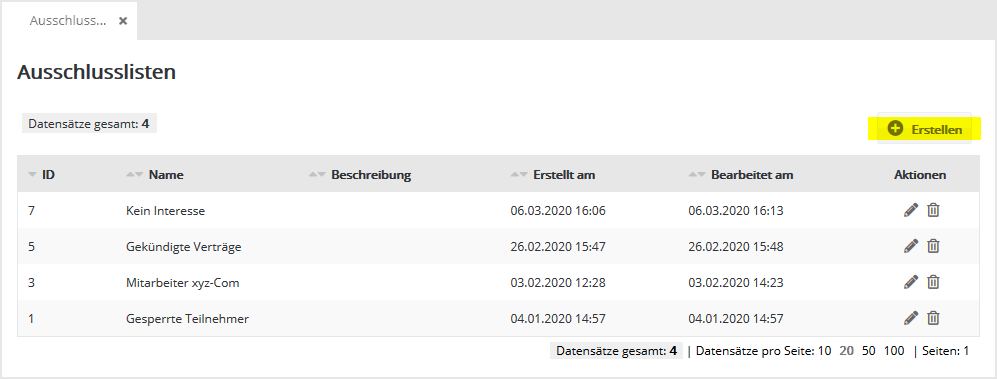
In the 'Subscribers' -> 'Exclusion lists' menu, create one or more exclusion lists that you want to select later on the send tab of your newsletters.
Once the exclusion list has been filled, you can select it on the send tab of your mailing to exclude the subscribers it contains from the delivery of this mailing.
Note: The calculated number of "Proposed recipients" on the send tab of the mailing does not take the selected exclusion list into account, only the selected subscriber lists and target groups.
|
Creating a new exclusion list
Create one or more exclusion lists that you want to select later on the send tab of your newsletters.
Once the exclusion list has been filled, you can select it on the send tab of your mailing to exclude the subscribers it contains from the delivery of this mailing.
Click 'Create' to create an additional exclusion list.
- Choose whether the exclusion is based on the email address or on another subscriber field.
- Specify whether the data is in pseudonymized (hashed) form or in plain text.
- Import the subscriber data to be blocked into the exclusion list or create it manually.
Editing / deleting an exclusion list
The 'Actions' column contains the icons for editing and deleting an exclusion list.
- Edit: Change the data of the exclusion list and add the exclusion values you need. Only exact matches apply, e.g. the value john_doe@example.com for the email field. Wildcards such as %@example.com are not supported.
- Delete: The exclusion list is deleted, including all values stored in it so far. You must confirm the security prompt by entering the word 'DELETE'.
|


