


Extras: Survey statistics
Here you see the results of your survey, i.e. the number of participants and the statistics of the answers given.
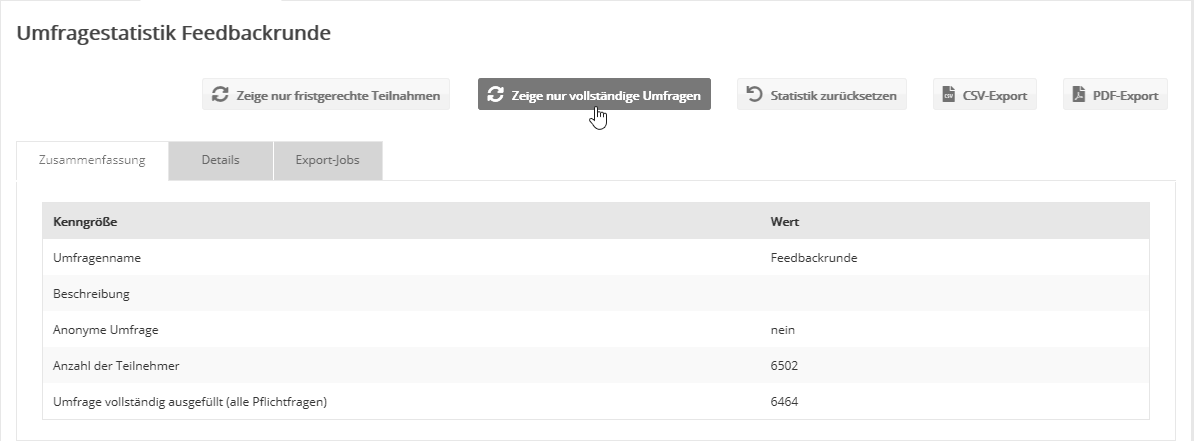
Above the table you will find the following buttons:
- Show in-time participations only: Hides late participants who only tried to complete the survey after it had ended. Strongly differing numbers may indicate that the end of the survey was set too early.
- Show completed surveys only: Hides participants who answered only some of the mandatory questions. Strongly differing numbers may indicate that the survey is too long.
- Reset statistics: Resets the survey statistics so that the survey can be started "fresh".
- CSV export: Exports the survey statistics as a CSV file. Depending on how you plan to evaluate the data, you can choose the matching output format:
- Question codes / answer codes: Use this variant if, for statistical evaluation, you prefer to export the question and answer codes defined in the survey instead of the full question and answer texts. In addition, a separate column is created for each possible answer. If this answer was given, the column contains the value 1, otherwise the value 0. Depending on the software you use, this output format can make statistical evaluation easier. The combined code of the question and answer is used as the column heading. Suppose the question has the code 'q-01' and 5 possible answers with the codes 'a-01' to 'a-05'. In this case, 5 columns with the headings 'q-01/a-01' to 'q-01/a-05' are created. If the answer 'a-03' was given, this column contains the value 1.
- Questions and answers in plain text, answer options grouped: The questions and answers are exported with their full text, without codes. One column is created per question, with the question text as its heading. The given answer is entered in the column in plain text. If several answers were given to a multiple-choice question, they are grouped and entered separated by commas.
- PDF export: Exports the survey statistics as a PDF file.
'Summary' tab
This tab shows, among other things, the number of survey participants and how many participants answered all mandatory questions completely.
'Details' tab
Here you see the statistics for each individual question.
'Export jobs' tab
Here you find the download links of previous CSV exports.