


Subscribers: Subscriber management
This overview shows all subscribers of your account.
You can filter the display in three ways, which can also be combined:
- Search: Enter a search term to run a full-text search across all subscriber fields. The matching subscribers are displayed. You can also search for a specific subscriber ID.
- List: Shows only the subscribers of this subscriber list.
- Target group: Shows only the subscribers of this target group. Note: If some of your target groups are missing here, your account does not have the profiling right. This means that personal evaluation of user behavior is not permitted, and the corresponding target groups such as "has opened", "has clicked" or "has received" are not offered here.
To keep the focus on the subscriber fields relevant to you, you can select the displayed columns and change their order. To do this, click the 'Column selection' button at the top right.

In the overview, you can view, unsubscribe, edit, move or delete your subscribers across all lists.
To change the list membership of a subscriber, first click the 'Edit icon' of that subscriber:
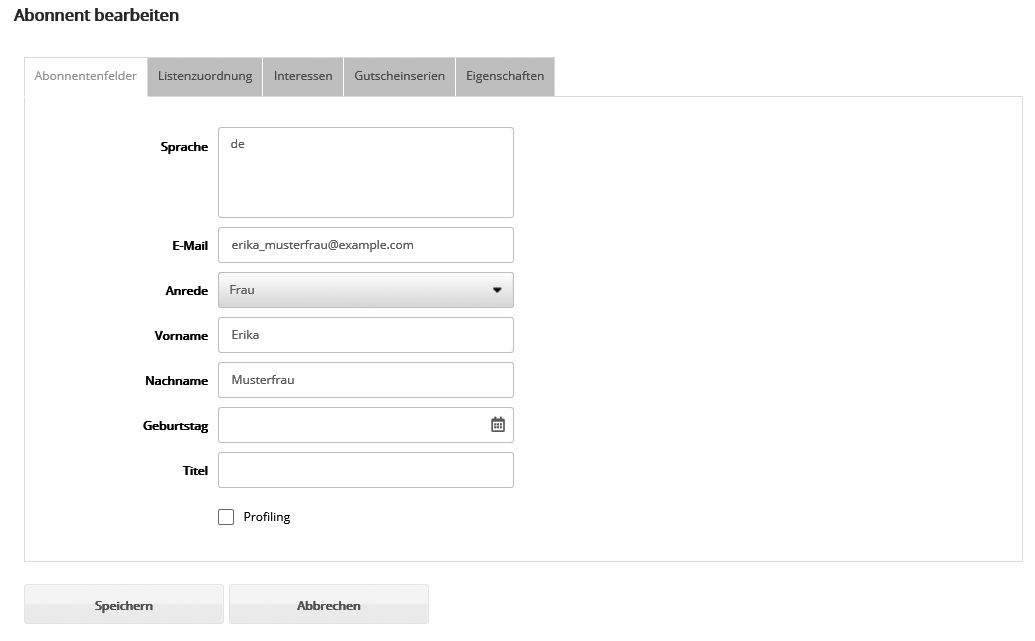
In the second tab, 'List assignment', you can now move your subscriber to another list. To do this, click 'Add lists', select the list you want and click 'Apply'. Then save. Your subscriber has been moved successfully.