Subscribers: Target groups
|
Target groups let you filter your subscribers by a wide range of characteristics, such as salutation = "Mr." or "clicked link y in mailing x". Target groups react automatically to changed subscriber data and are not tied to fixed subscriber lists. They allow a very precise and always up-to-date segmentation of your subscribers. You can redefine, change or delete target groups at any time. The subscriber data itself remains unaffected. The overview shows the existing target groups of your account. |
|||||
 |
|||||
|
Click the small calculator icon to calculate the number of subscribers in the target group for all subscriber lists. Click 'Subscribers' in the 'Shortcuts' column to see which subscribers belong to the target group. If you want to limit the calculation to specific subscriber lists, click the edit icon. On the 'Calculation' tab, select the subscriber lists you want. Of course, you can also define a specific list membership directly in the target group. Creating a new target groupClick 'New target group' at the top right and enter the name and (optionally) a description of the target group. Then switch to the 'Definition' tab. 'Definition' tabHere you create the conditions of your target group, e.g. salutation = "Mr.". Click 'New condition' at the top right and select one of the following condition types:
Save the settings of your target group ('Finish') or define the next condition right away ('Create more'). You can combine the conditions of different target group types with AND or OR and nest them in one another as blocks. To display the subscribers of the target group, click the 'Display subscribers' button at the top right. 'Calculation' tabClick the calculator icon to calculate the number of subscribers in your target group. First select the subscriber lists whose subscribers the calculation should be based on. In the lower section, you can narrow the calculation down further by clicking the respective calculator icon, namely for a single condition or a single condition block. Note on deleting target groupsYou can delete any target group you created earlier if needed. This is possible even if it is still actively in use, for example in the variant of a personalization assistant, in a target-group-dependent mailing article, on the Send tab of a mailing, or in the start or condition block of a campaign.
|
|||||
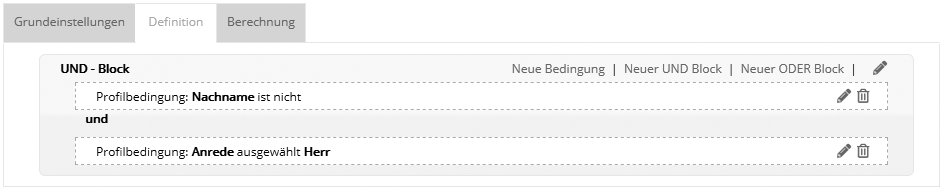
Target group types in detailCondition based on subscriber dataThe most frequently used target group type is filtering by subscriber fields, such as salutation, department or date. In your account, you will find the sample target group 'Männer' (men):
It contains all subscribers whose salutation is 'Mr.' and whose 'Last name' field is not empty. The two conditions are linked with AND, i.e. both must apply for a subscriber to match this target group. Incidentally, exactly this target group is used as the male variant in the salutation 'Personalization assistant' in order to address only subscribers whose name is known in the form "Dear Mr. Müller". If the salutation or the last name is missing, it falls back to "Dear Sir or Madam". Another example would be a target group for today's date of birth. Here, two conditions are linked with AND:
Condition based on list affiliationThis filters which subscribers belong to one or more subscriber lists.
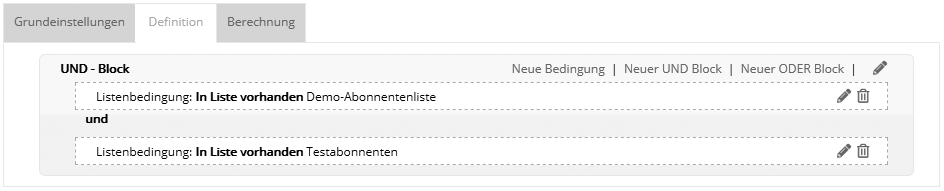
As with all target group types, you can link several conditions with AND or OR. In the following example, the target group returns all subscribers who are in both lists:
Condition based on target group membershipA subscriber either belongs to a target group or not. With this condition, you query membership in an existing target group instead of "rebuilding" its conditions one by one. Such a "modular" structure improves clarity and maintainability, especially for very complex target groups. Condition based on interestCreate a condition based on the interest of subscribers. The score of the current interest depends on which interest links the subscriber clicked and how long ago these clicks were. Possible conditions are:
Condition based on a random selection of subscribersIn this target group, you select subscribers at random with an adjustable probability from 0 to 100%. While the 'A/B test' function directly automates the comparison of mailing variants, the random target group serves as the basis for comparison tests of all kinds, especially in campaigns.
Three examples of use:
Selection probability in percentEnter a percentage between 0 and 100%. A subscriber belongs to the target group with this probability. For example, a value of 25% means that approximately (see note) a quarter of all subscribers belong to the target group. To do this, emma distributes all subscribers on a number line between 0 and 100%. With 10 "colorful" subscribers, one variant could look like this:
emma randomly selects the distribution key from over 4 billion possibilities as soon as the target group is created. The distribution key is stored permanently and from then on determines the position of each subscriber (including future new subscribers). The target group membership of existing subscribers is retained permanently as long as you do not click 'Re-distribute subscribers'. If you increase the selection probability from 25% to 50%, the following happens:
The dice are not "rolled again": the yellow and the orange subscriber still belong to the target group. The selection has merely grown, so that 3 more subscribers belong to it.
Re-distribute subscribersBy clicking 'Re-distribute subscribers' and then the 'Change' button, you can "roll the dice again" at any time to create a different distribution variant:
This can be useful especially after copying an existing target group, if you do not want identical subscribers in the original and the copy. Condition based on voucherFilter subscribers by whether, and in which period, a voucher was assigned or redeemed. Tip: To mark assigned vouchers as redeemed, either use the webservice function 'RedeemVoucherByCode' or import a CSV file with the redeemed voucher codes in the voucher overview. Condition based on selectionWith this condition type, you use a selection of subscribers created via the webservice as a emma target group. The condition type is only visible if at least one selection has been created via the webservice. What makes it special: in a selection, subscribers are grouped based on a list of IDs. This lets you use a subscriber selection made externally as a target group, without the emma subscriber data having to share a common characteristic. For details, please refer to the webservice documentation, which we will be happy to send you. Condition based on the recipient (supposed)This condition determines whether or not a subscriber was intended as a recipient of a specific mailing. This means that they are in a subscriber list or target group for a specific mailing that was sent. Unlike the condition below, however, actual receipt is not checked. It also includes all recipients who did not receive the mailing, e.g. because of bounces, blacklists or server-side spam filters. Condition based on receipt (delivered)This condition determines whether or not someone has received a specific mailing. The mailing counts as received if the subscriber's email server has returned a positive response. In the step after receipt, it is still possible that the mailing ends up in the recipient's spam folder. Condition based on bounce behaviorThis lets you create conditions based on the deliveries or non-deliveries of a specific mailing. Condition based on blacklist or retained addressesSubscribers whose email address is on a blacklist or on the list of retained addresses are automatically excluded from sending. You can filter the same* subscribers using a target group, for example to exclude them from the export of your subscriber data as well. The combined target group looks like this:
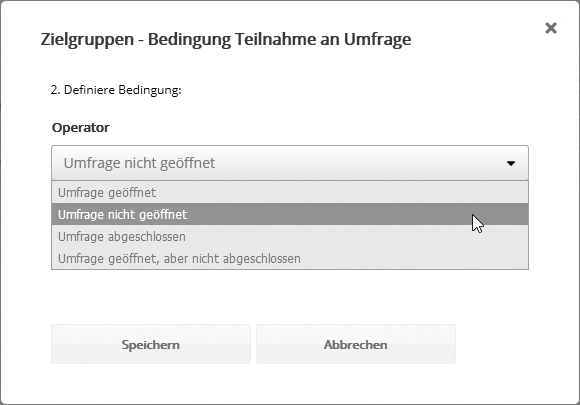
Alternatively, you can clean up your subscriber lists using blacklist matching. This deletes subscribers whose email address is on a blacklist from your subscriber lists. *Note: The 'Blacklist' target group type only considers the blacklist of your own account. Sending additionally takes higher-level blacklists into account. Condition based on opening behaviorCreate conditions based on the opening behavior of the recipients of a specific mailing. Condition based on click behaviorUse this type to separate recipients of one of your mailings who did or did not click a selected link. Condition based on survey participationThis condition filters which subscribers took part in a personalized survey. Anonymized surveys are not available for selection, because their responses cannot be evaluated per subscriber. You can query whether the subscriber only opened the survey (clicked the survey link) or whether they actually answered and completed it.
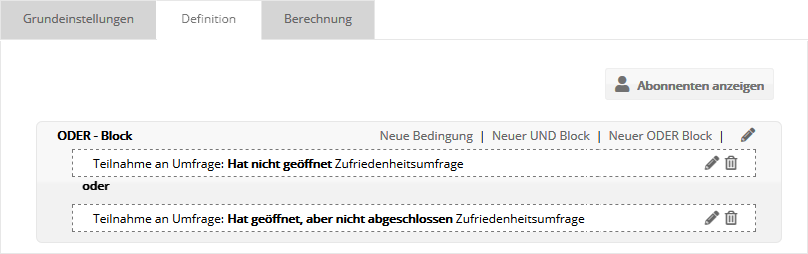
As a rule, a single target group condition is enough to check survey participation. If you want to ask the previously contacted "non-participating" subscribers once more to take part in the survey, combine two conditions with OR:
In addition to survey participation, you can also check specific answers if, when creating the question, a subscriber field was selected into which the answer is entered automatically. Condition based on profile changeCreate a condition based on profile changes that were or were not made in a specific period. Condition based on tell a friendCreate a condition based on recommendations of a newsletter. Condition based on opt-inCreate a condition based on opt-ins that were made in a specific period.
|