


Administration: User rolesIn this menu, you define user roles and global user roles and their permissions. You then assign one or more roles to each user. |
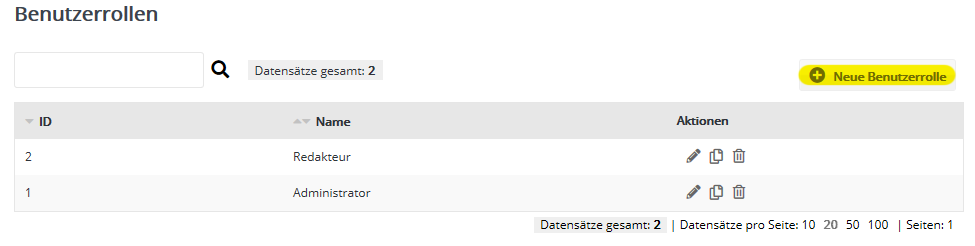
Account administrator: there can be only oneThe first user created in the account is automatically the sole account administrator. This is the only user without a user role, because their permissions cannot be restricted and include special permissions that go beyond the role permissions. The account administrator cannot be changed or deleted by other users. Sample roles 'Administrator' and 'Editor'In new accounts, the roles 'Administrator' and 'Editor' are created as examples. You can adjust both roles and/or create new roles.
|
'Basic settings' tabGive the role a meaningful name and define further options:
'Permissions subscribers' tab and othersOn the following tabs, you define the individual role permissions. For most functions, different actions can be controlled separately, such as creating, editing and deleting elements. If none of these actions is activated, the corresponding function is not offered in the user interface. In this case, the corresponding item is missing from the main menu.
Note: Please make sure that the individual role permissions are combined in a meaningful way. We will be happy to advise you on this. The role management cannot technically exclude combinations of permissions that make no logical sense. Two examples:
|
Global user roles
In the 'Global user roles' area, you create and manage user roles that are used exclusively for global users.
Global roles are created in the admin account. To do so, click 'New global user role', give it a meaningful name and select the user permissions you want. After saving, the role is available when you edit global users and can be assigned there to one or more accounts.
Changes to a global user role are automatically applied in all accounts in which this role is used.
If you want user management to be exclusively global, you should not give global roles the permission to create local users and roles.
Please note: Unlike regular user roles, folder permissions cannot be restricted for global roles. This means that global users can always see all folders and their contents.