Subscribers: Subscriber listsIn this menu you manage the subscriber lists of your recipients. Here you can change list properties such as the name of the list, and add or delete lists. To get started, you will find a demo list into which you can add subscribers. To organize your subscribers, we recommend:
To see the subscribers of a list, click 'Subscribers' in the 'Shortcuts' column. You can create more lists later by clicking 'New subscriber list' at the top right.
The icons shown also give you the options open, open folder, move and delete. Click the 'open' icon to view and edit the name, the description and the subscribers contained in the list. Click 'move folder' to move the selected list to another folder. To do so, you must already have created subfolders in the folder administration. If you have already moved a subscriber list to a subfolder, click the 'open folder' icon to go to this subfolder. Creating a new subscriber listUse the 'New subscriber list' button to create new subscriber lists in emma. An input form appears. In its first tab, 'Basic settings', you enter the name and (optionally) a description. Click the 'Subscribers' tab to go to the overview of the records. Here you can create individual subscriber records directly in emma via 'create'. A more efficient alternative to entering records by hand is the import, which is described under Import. In addition, every subscriber list shows the 'Last import' with its date and the corresponding 'Import ID'. 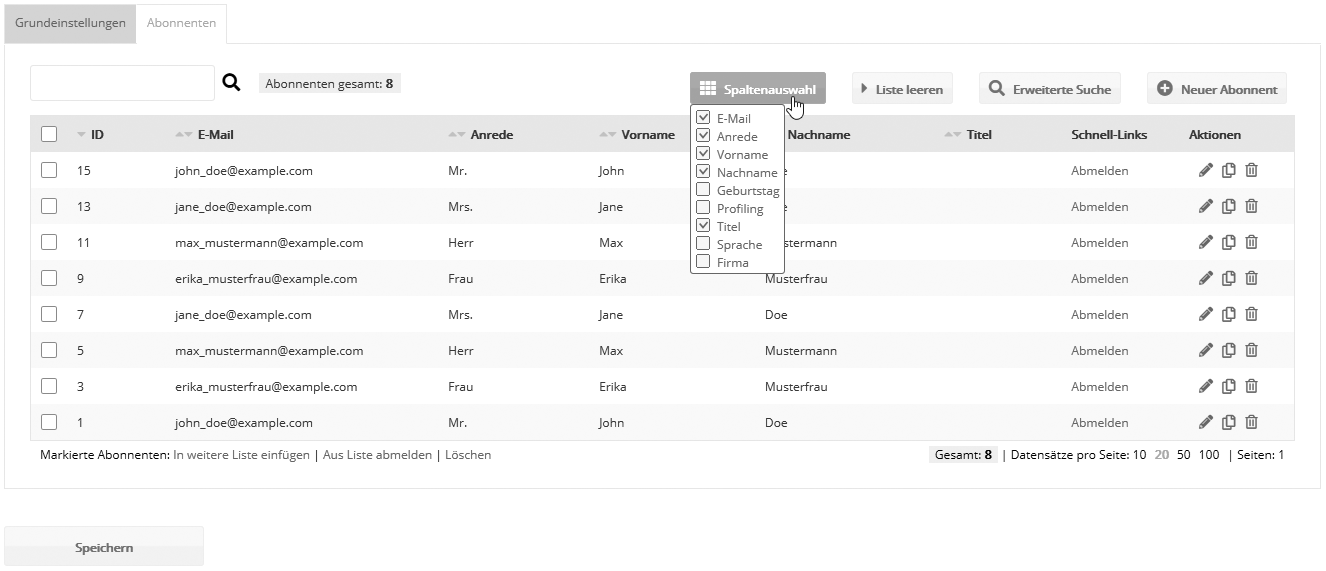
Subscriber data such as email address, salutation, first name and last name is stored in subscriber fields. If needed, you can create additional subscriber fields, for example to store the company, customer number or date of birth. Use the search field or the extended search to search specifically for entries in the selected 'subscriber list'. The same subscriber in several lists?Yes, a subscriber can belong to several lists with their subscriber ID, as you can see in the subscriber management. With duplicate matching you can (and should) merge subscribers with identical data under one subscriber ID at any time. This is also possible for duplicates in different lists, because the list membership is kept. Deleting a subscriber listIf a subscriber list is deleted, the subscribers it contains necessarily lose their membership in this list. If subscribers then belong to no other list, they are deleted. Otherwise, they remain in their lists that still exist. Searching for subscribersIn the subscriber overview, you can use the extended search to filter out specific groups of subscribers. After you select a target group or enter individual search terms, all subscribers matching your search are displayed. |


