de en


Subscribers: Subscriber fields

You import your subscribers' data into the subscriber fields. The data can be output in the mailing and used to create target groups.

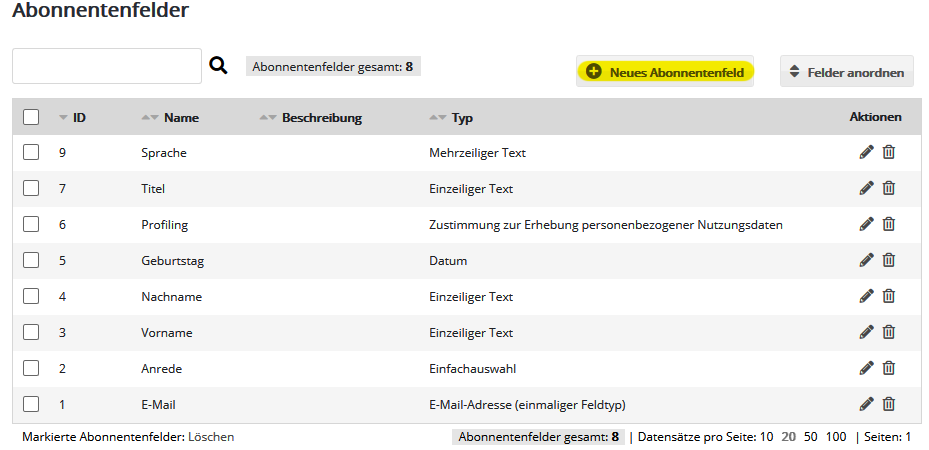
Common fields such as email address, salutation, first and last name and birthday have already been created. If needed, you can  create additional subscriber fields, for example to store a customer number or further contact details for each subscriber.

Good to know: Subscriber fields are available identically in all subscriber lists.

Predefined subscriber fields in emma

Please choose the names of your subscriber fields so that they match the column headings of your in-house data. This makes later subscriber imports easier, because automatic column mapping is possible.

Creating a new subscriber field

Click 'New subscriber field' to create an additional subscriber field.

  • Name: Name the fields in emma to match the column headings of your existing data. During the subscriber import, the field name is used to map each column of your import file to a subscriber field in emma. If the names match, the columns are mapped automatically.
  • Alias: The alias is the unique placeholder you use to include subscriber data in the text of your mailings. If, for example, you enter "Customer-No" as the alias, you could write in the mailing "Your customer number is: [Customer-No /]". Of course, you can also insert placeholders using the input assistance, which is offered in many places.
  • Type: Select the field type that best suits the kind of data.
  • Default value: Newly created or imported subscribers automatically receive the value entered here. For selection fields, only existing options are accepted as the default value. If no value is entered, new subscribers receive, depending on the field type, no value, an empty value, the first option for the field type "Single selection", and the value 0 for the field type "Boolean value (checkbox)".

Editing / deleting a subscriber field

In the 'Actions' column, you will find the icons for editing and deleting a subscriber field.

  • Edit: Change the name, description and type of the subscriber field.
  • Delete: The subscriber field is deleted together with all subscriber data stored in this field so far. You must confirm the security prompt by entering the word 'DELETE'.

Choosing the subscriber field type

Depending on the kind of data the field is to store (text, number, date, etc.), select the type of your subscriber field:

Text

Text fields are the most commonly used field type. They allow almost any input except HTML code.

  • Single-line text (max. 250 characters): Suitable for shorter single-line texts, e.g. name, company name, phone number.
  • Multi-line text: Suitable for long or multi-line texts.

The field types above are automatically protected against misuse by a security filter, so they can be used safely in forms. They are not suitable for storing HTML source code or a URL, because source code is automatically filtered out when the field values are output.

For a text field without a security filter, please use the following field type:

  • HTML source code / URL: Similar to 'Multi-line text', but also suitable for storing HTML content or a URL.

Only with this field type is the content output 1:1 and without filtering. An example: assume the subscriber field contains the text <font color='red'>red text</font>. Depending on the field type, the output in the mailing looks different:

  • Output with the field type 'Single-line text' or 'Multi-line text': <font color='red'>red text</font>
  • Output with the field type 'HTML source code / URL': red text

Number

Compared to text fields, number types have two advantages: they allow numerical comparisons in target groups (greater/less than) and also allow the field value to be added to or subtracted from via profile enrichment.

  • Integer: Suitable for whole numbers (without decimals) in the range +/- 2 billion, e.g. as a counter for a campaign run. Please do not use it for postal codes or phone numbers, because an integer field does not keep leading zeros.
  • Decimal number: Suitable for product prices, for example. Please use the English notation, i.e. a period as the decimal separator, not a comma. The value range is practically unlimited (+/- 10^38), the precision is at most 7 digits.

Selection

The recipient selects one or more options, depending on the field type. Enter the possible options in the field settings separated by commas and without spaces. If "no option" should also be selectable and appear at the very top of a subscription form, for example, add a "bare" comma at the beginning of the line, e.g. for the salutation field ,Frau,Herr.

  • Boolean value (checkbox): Corresponds to the classic checkbox that can be activated or deactivated. Permitted values in the subscriber import are 0, 1 or an empty value. The default value for new subscribers is empty. As soon as you edit a subscriber manually in the subscriber management, a deactivated checkbox is always saved as the value 0. Unfortunately, it is not possible to distinguish between 0 and an empty value when using a checkbox.
  • Single selection (1 of max. 500 options, text length per option max. 255 characters): Offers a selection of predefined options, of which the user can select exactly one option. For example, you could enter ,Frau,Herr as the options for a salutation field. The comma at the beginning ensures that the field can also handle an empty option, for example if the salutation is not known. In the subscription form, you can later choose whether the field is displayed as a drop-down menu or as a radio group. Only existing options are accepted as the default value for new subscribers.
    -> Note: Please do not import the names of your subscribers into the salutation field, but use a separate field of the type 'Single-line text' for this.
  • Multiple selection (several of max. 64 options, text length per option max. 255 characters): Offers a selection of predefined options, of which the user can select any number of options. One use case would be interests or product categories the subscriber wants to receive newsletters about in the future. In the subscription form, you can later choose whether the field is displayed as a drop-down menu (rather unusual) or as checkboxes. When subscriber data is updated, for example by import, duplicate matching or a repeated subscription, you can choose whether previous and new options are merged or replaced. Only existing options are accepted as the default value for new subscribers.
  • List of countries: Like single selection, but with a predefined list of all countries. When importing, please fill the field with the two-letter country code according to ISO 3166-2. The country name can be output in any language.

Date

For the import of date values and the display in the subscriber management, the English format %Y-%m-%d %H:%M:%S is preset (year-month-day hour-minute-second). You can change the format in the settings of the subscriber field. You get the German date format by entering %d.%m.%Y (e.g. 31.12.2020).

For the output of date values in the mailing, you have numerous formatting options.

The following field types are available:

  • Date: Suitable for storing the date when the time of day does not matter. A typical example is the date of birth, to send birthday greetings with an automated campaign.
  • Time: Suitable for storing a time of day, e.g. from the reservation form of an event.
  • Date and time: Suitable for storing date and time, for example the time of the last contact or order.

Unique special types

Each of the following field types can only be assigned to one single field, because it has a special function.

  • Email address: Required as the recipient address for email sending. Exactly one email address can be assigned to each recipient. The check for logically invalid addresses also only handles this field type. If you have several email fields, for example "Email business" and "Email private", please decide which of them should become the "real" email field. The other fields have to make do with the type "Single-line text", without a special function.
  • Subscriber inactive (hibernate): Subscribers with the field value 1 are excluded from every send. This way, you can put individual subscribers into "hibernation", for example while they are away (vacation or similar), without having to delete them.
  • SMS number: Required as the recipient number for SMS sending. Exactly one SMS number can be assigned to each recipient.
  • Postal code: If you want to send postcards via emma, the recipient's postal code must have this special field type. The postal code may consist of numbers and letters (e.g. for British postal codes).
  • Consent to the collection of personal usage data (profiling): If a subscriber has the field value 1, their usage data, such as opens and clicks, is recorded on a personal basis. If the field value is 0 (refusal) or empty (new subscribers), the data is recorded anonymously. Target groups that check for opens and clicks contain only subscribers with the field value 1. Anonymous openers and clickers are counted in the total for the email statistics, but without any assignment to individual subscribers that could be evaluated. As soon as you edit a subscriber manually in the subscriber management, a deactivated checkbox is always saved as the value 0. Unfortunately, it is not possible to distinguish between 0 and an empty value when using a checkbox.
  • Send weekday: Required for the function Send time optimization -> Send at preferred time. The field contains the preferred weekday on which the mailing should be sent to this subscriber. It can contain the values 1 (Monday) to 7 (Sunday) or be empty.
  • Send time: Required for the function Send time optimization -> Send at preferred time. It contains the preferred time of day at which the mailing should be sent to this subscriber. The field can contain a time of day or be empty.

Converting the field type later, e.g. salutation

If you change the field type later, please make sure that subscriber data already stored can be represented in the new field type. Otherwise, field data is lost during the conversion.

Example: you have the text field "Salutation", which contains "Herr" (Mr.) or "Frau" (Ms.) depending on the subscriber. Now you want to offer the salutation in a form. However, the input field should no longer be (error-prone) free text, but only offer a choice between the defined options "Herr" and "Frau". To do this, change the field type to 'Single selection (1 of n)', but you must enter the allowed options "Herr" and "Frau" in the "Options" field directly during the conversion. Texts other than the options entered during the conversion are not taken over.

Arranging fields

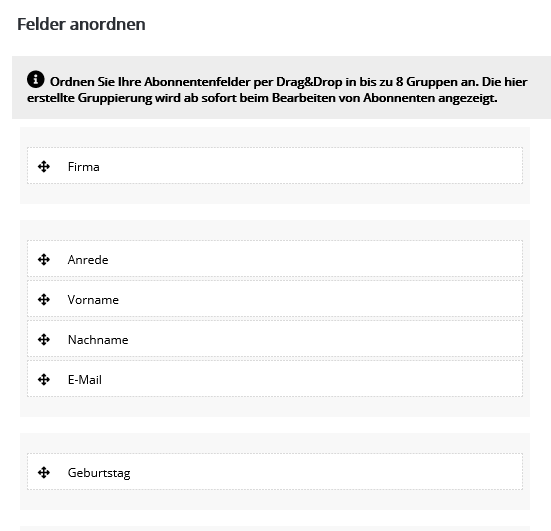
With 'Arrange fields' you can move the subscriber fields to a different position by drag&drop and organize them in up to four groups as needed. This keeps your subscriber data clearly organized and helps you find your way around the subscriber lists more easily.

Arranging subscriber fields in emma