Administration: Contact frequencyHere you set an upper limit for how often your subscribers are contacted. However, you should not use this function as a substitute for editorial planning. Only you as the sender know when each subscriber should ideally be contacted and which mailing is the most important one in the period. You can set the maximum number of contacts per period and (optionally) the minimum time interval between two contacts. If sending to a subscriber would violate the rules, the mailing is not sent to them. Note: The contact frequency is checked per subscriber based on their subscriber ID, not based on the email address. Only regular 'Duplicate matching' ensures that duplicates with the same email address are not contacted more than once.
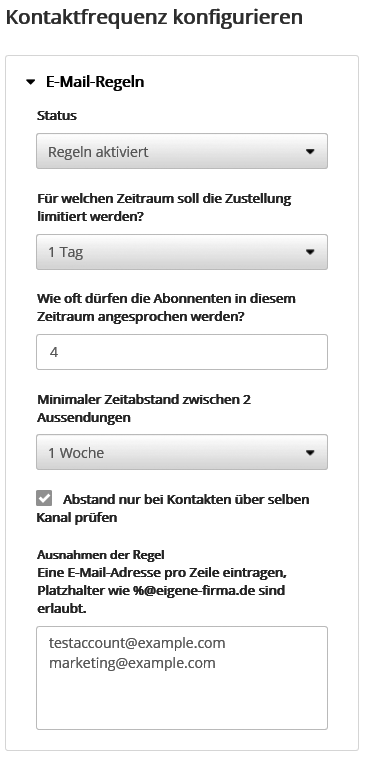
The tool is available for every sending channel supported by emma, i.e. for email, SMS and postcards. You can set the rules separately for each channel. Global setting in the accountThe settings made in the 'Administration' --> 'Contact frequency' menu apply equally to all subscribers of the account. However, compliance with the rules can be switched off for individual mailings, for example for opt-in and opt-out confirmations that should always reach the recipient. The following description uses the 'Email' sending channel as an example. The setting options of the other channels are identical. If the contact frequency rules are activated in the 'Status' field, emma decides before each sending whether the subscriber in question may receive the current mailing or not. If the rules prohibit contact at the current time, the mailing is not sent to this subscriber. It is not sent later either. You can set the following details:
--> Note: The contact frequency check takes place directly in the sending process. Therefore, when the number of recipients is calculated before sending, recipients who may subsequently be sorted out by the contact frequency check are initially counted as well. After sending, the final number is displayed as 'Recipients' on the 'Send' tab of the mailing in the 'Archive', and also in the 'Statistics' under 'Status' --> 'Deliveries' --> 'Recipients'.
Example for 'Minimal time interval'Suppose your subscribers have so far received a newsletter twice a week, i.e. 8 emails per month (simplified). By activating the contact frequency rules shown above, you limit this number within one month (period) to a maximum of 4 (limit) of the 8 emails. Which 4 emails these are depends on the 'Minimal time interval' setting:
Example for a cross-channel checkBy default, no cross-channel check takes place, because the option 'Check interval only for contacts via the same channel' is activated in each sending channel. In the example of the 'Email' channel with the setting Minimal time interval = 1 week, the following check takes place before each email sending:
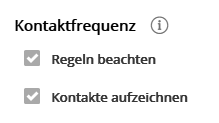
For example, if you want to set an overall limit of one contact per week for your subscribers, deactivate the option in all sending channels and select '1 week' as the uniform 'Minimal time interval'. Individual setting per mailingYou can exclude individual mailings from the contact frequency rule check so that they are sent in any case. This makes sense, for example, for status messages after an order in an online shop. In the overview of your mailing drafts, open the mailing you want. On the 'Advanced settings' tab, you will find the following options in the 'Contact frequency' section:
When you create a new mailing draft, both options are initially activated, so existing contact frequency rules are taken into account. |