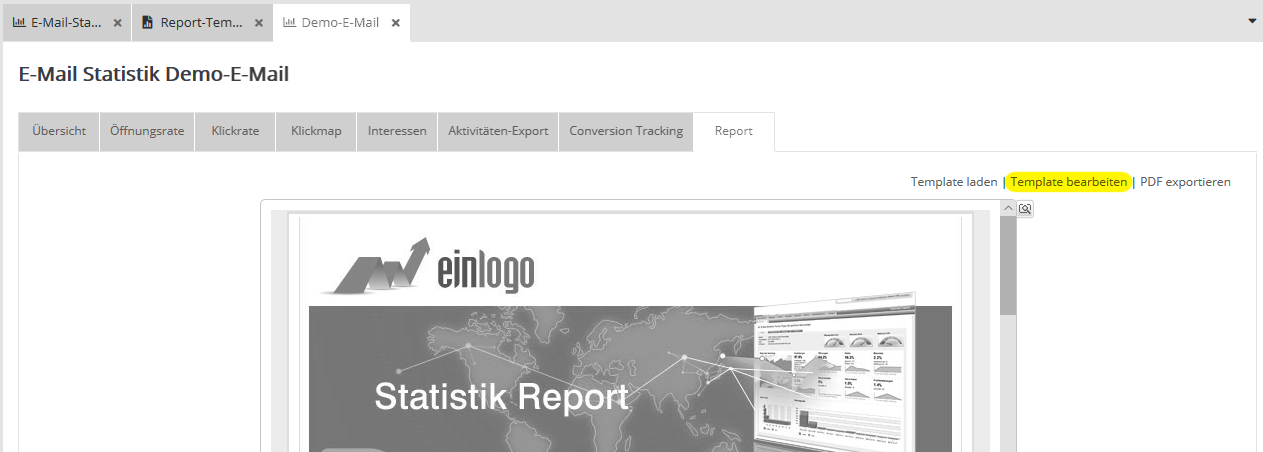
Email: ReportsThe 'Extended statistics' module helps you analyze your sent mailings precisely by target group. Among other things, you can create a PDF file with the statistics relevant to you or have the report sent to you automatically by email. How this works is described under section 3.1.1 Settings.
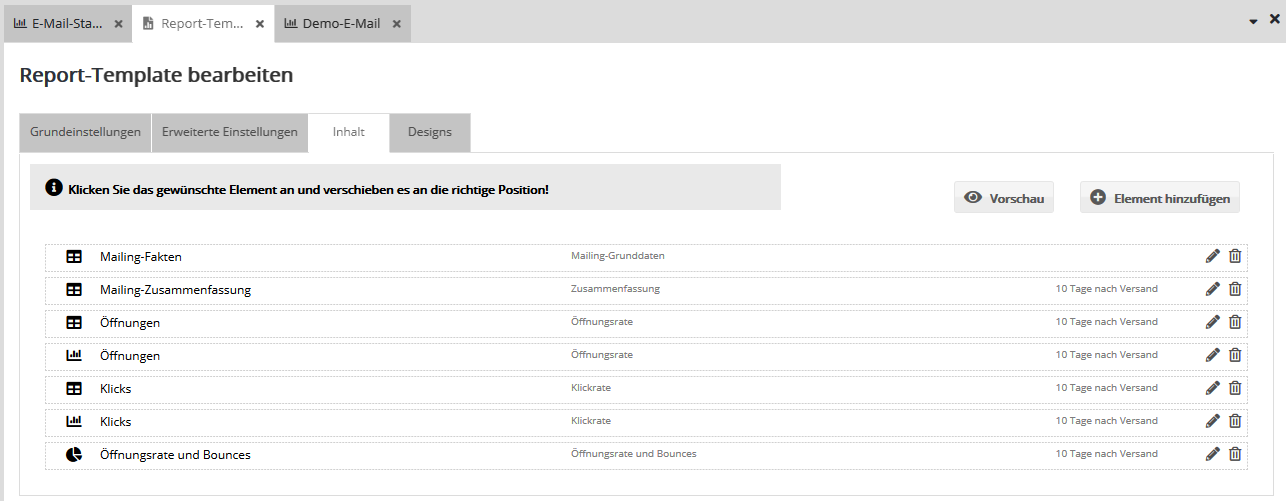
On the 'Contents' tab, you can move the individual report elements by drag&drop, add new elements or delete elements. You can choose from 13 different elements. For many of the elements, you can choose between tables, bar charts and pie charts. To edit an element, click the corresponding 'edit icon'. A window opens in which you can set the element name, the description, the time span and the target group to be shown. Once you have made all settings, confirm your selection with OK.
Note on the 'Mailing summary' report element:
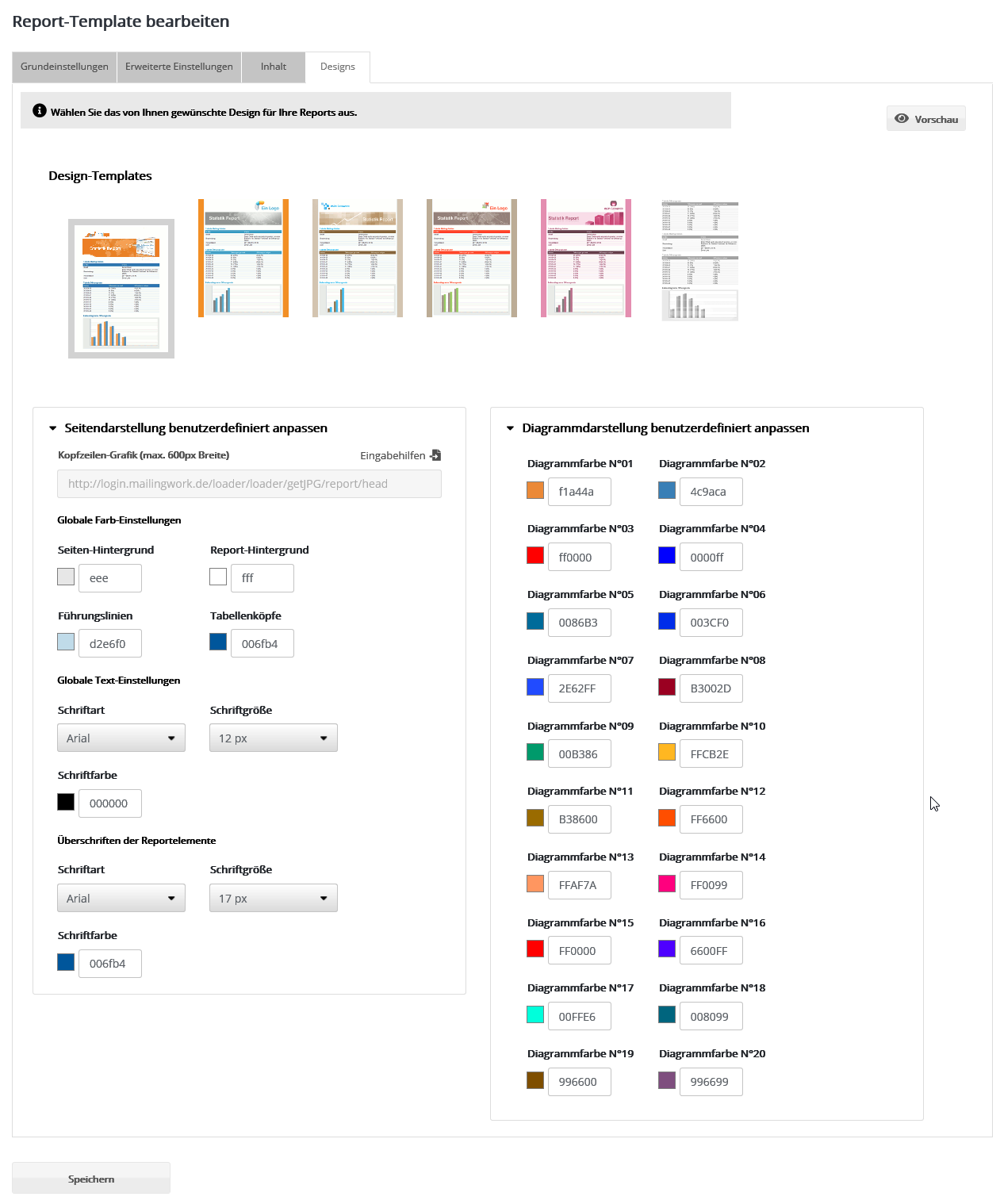
Now you can also adjust the design of your report. To do this, select the 'Designs' tab. By default, emma already offers you 6 different layouts. HTML professionals can also expand the advanced settings below the layouts and edit the HTML tags directly. For example, you can insert your logo into the header in the page layout. Once you have made the changes you want, please do not forget to click 'Save'.
|