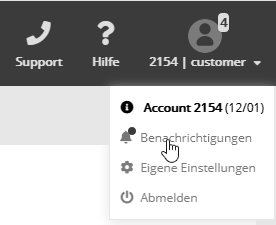
Miscellaneous: Notification serviceThe notification service informs you when important events occur in your account. This lets you react quickly when needed, for example to correct a failed send and repeat it right away. If you have the corresponding user permission, you will find the 'Messages' menu item below your profile picture.
Subscribing to messages by emailWhen new messages arrive, your profile picture shows an icon with the number of messages. To be able to react even after logging out, you can also subscribe to the messages by email. To do so, activate the checkbox 'Receive system messages by email' in the menu 'Custom settings -> Basic settings'. Supported eventsThe notification service supports the following events:
Error: Email sending failedThis error occurs if sending a standard mailing failed, i.e. not a single recipient was sent the mailing. The cause is often just a small operating error that you can fix with a corrected follow-up send. First check the email statistics of the mailing concerned. The most common cause is that the selected combination of subscriber list and target group resulted in 0 subscribers at the time of sending. Error: FTP subscriber import failedThis error occurs if the file of an FTP subscriber import could not be imported. The cause is displayed. Possible causes:
Success or error: Sharing an element in the multi-account systemIf an element (template, mailing etc.) is shared with other accounts in the multi-account system, every account involved receives a notification. The same applies when the activation status of an element is changed across accounts. The most common cause of errors is a missing substitute on an element in a target account, for example the substitute of a template when sharing an email. Substitutes are necessary so that the shared element can assign all required components in each target account, regardless of (possibly different) IDs. The message in the source account states when and in how many target accounts the sharing succeeded or failed. Error: WebHook failedIf calling a WebHook fails repeatedly because the stored URL cannot be reached, the system deactivates this WebHook automatically. At the same time, a system message is created. To reactivate a WebHook, open the message and click the activation link you want. You can decide whether the events that accumulated during the first 5 days after deactivation should be processed afterwards.
|